![Connect Game - Click the [Connect to World] button.](/assets/worldline-guide/connect-world-0.gif)
Step 01
Click the [Connect to World] button.
1. Connect your game to the program to manage save files.
Step 1. Connect Game
Connect your game to the program to manage save files.
1. Connect your game to the program to manage save files.
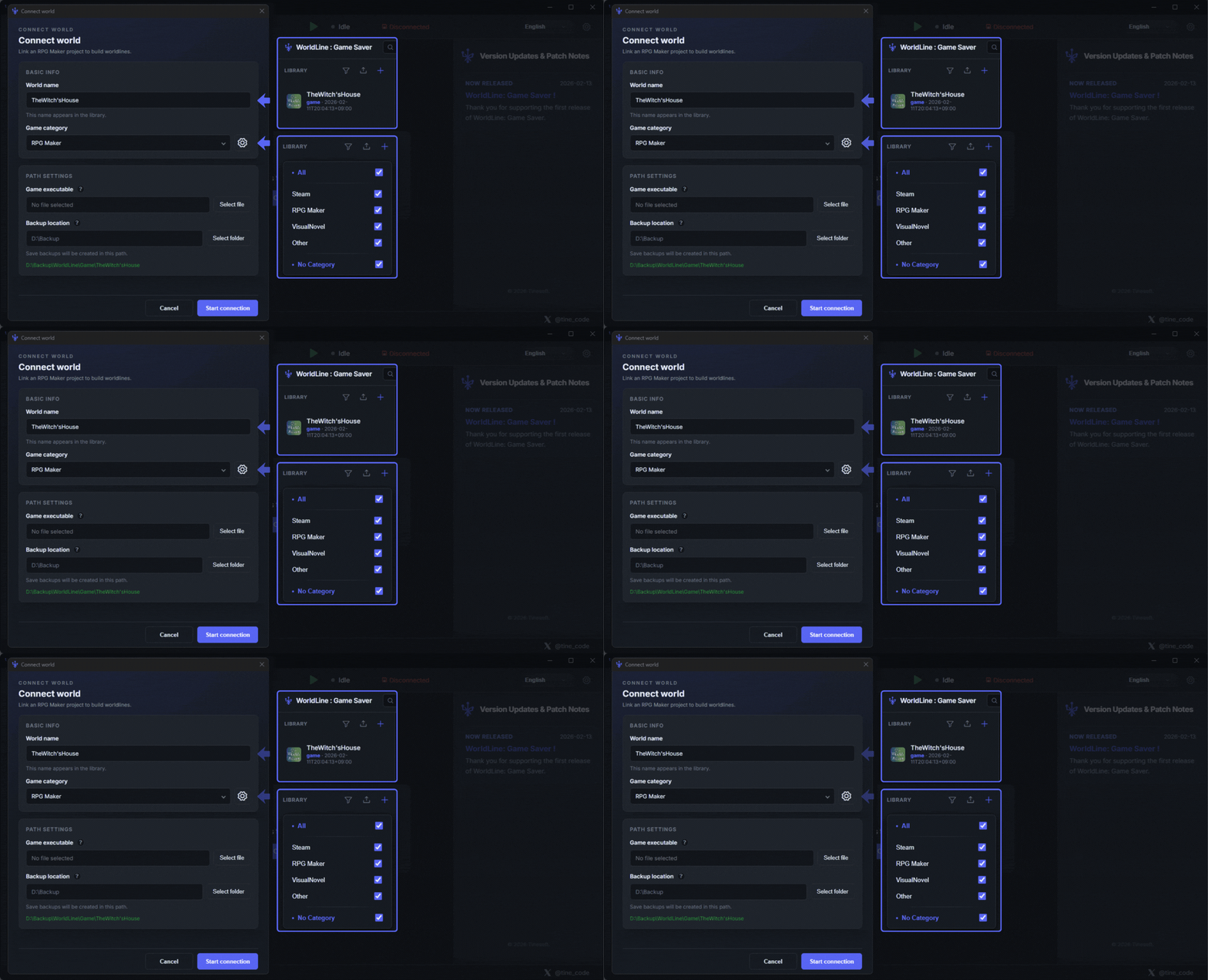
1. Set 世界名称 to the library name for managing the game.
2. Set the game category so you can quickly find the library later with the filter feature.
3. Link the game executable in 游戏可执行文件. The running game is recognized based on this path.
4. Set 备份位置 to the save path for tracked files while playing. The program stores save files separately from the game's actual save files.
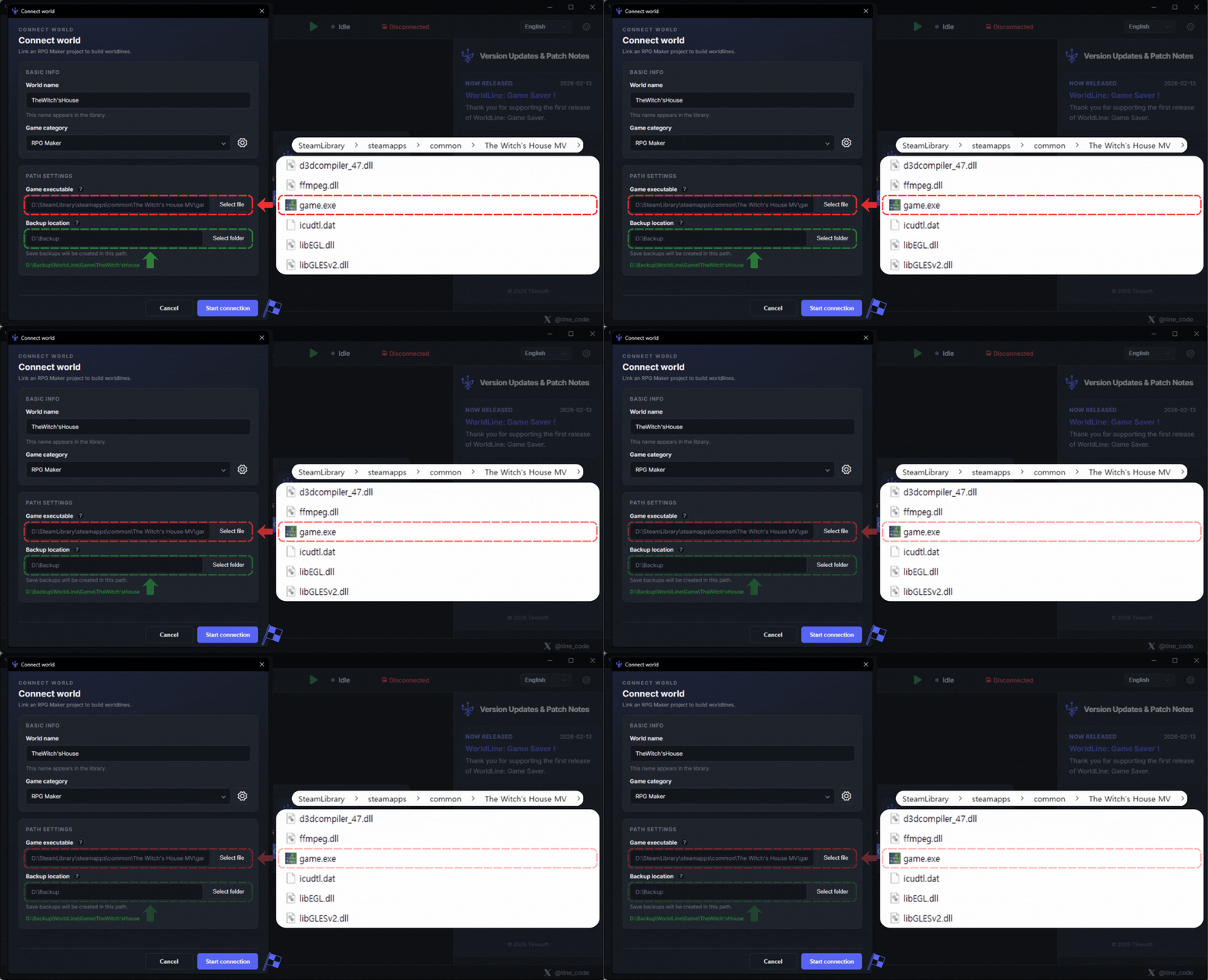
1. Set the game executable path
2. Set the path where WordLine stores game save files
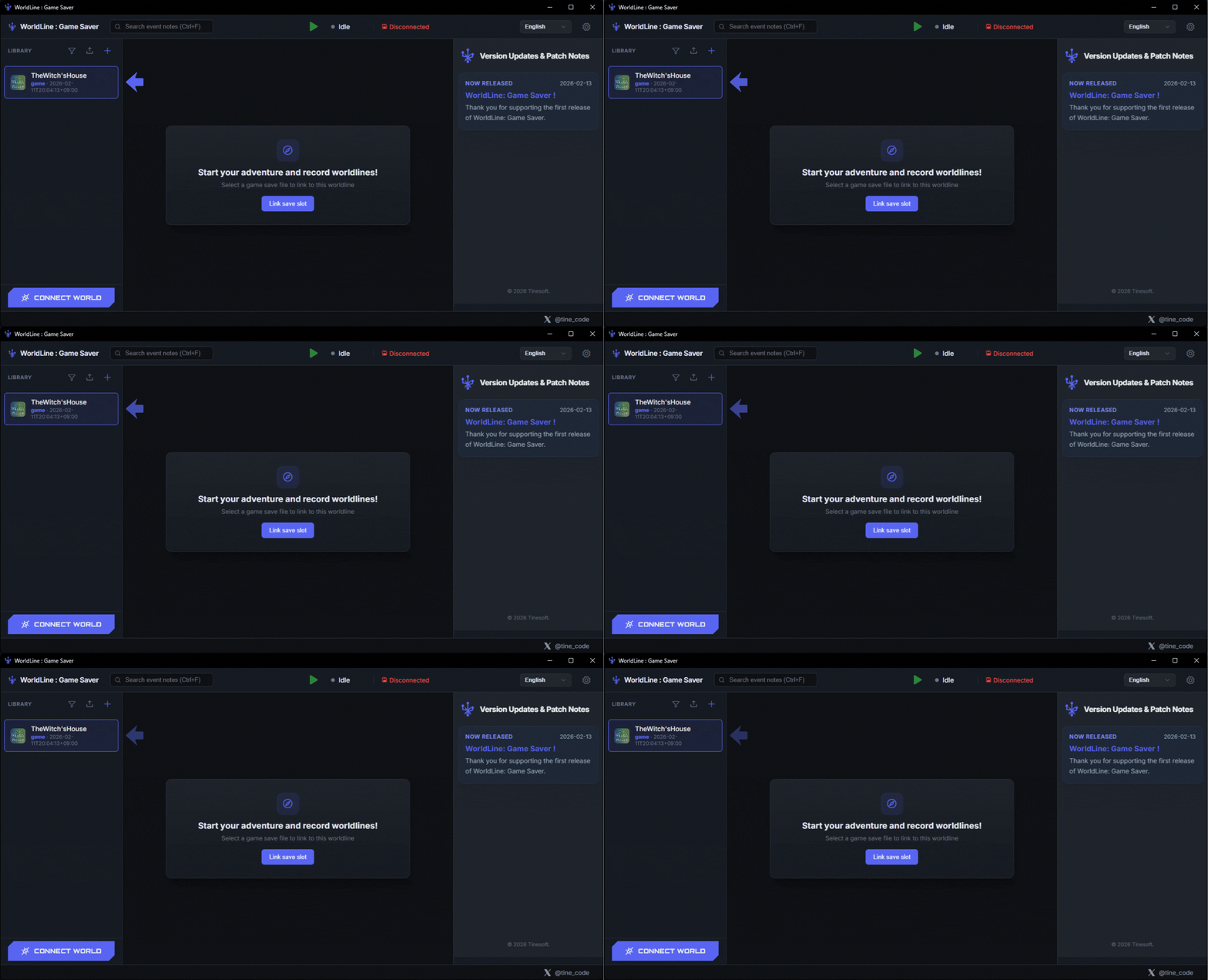
Refer to Step 2 and connect a save slot.
Step 2. Connect Save Slot
Bind a save slot to the selected worldline.
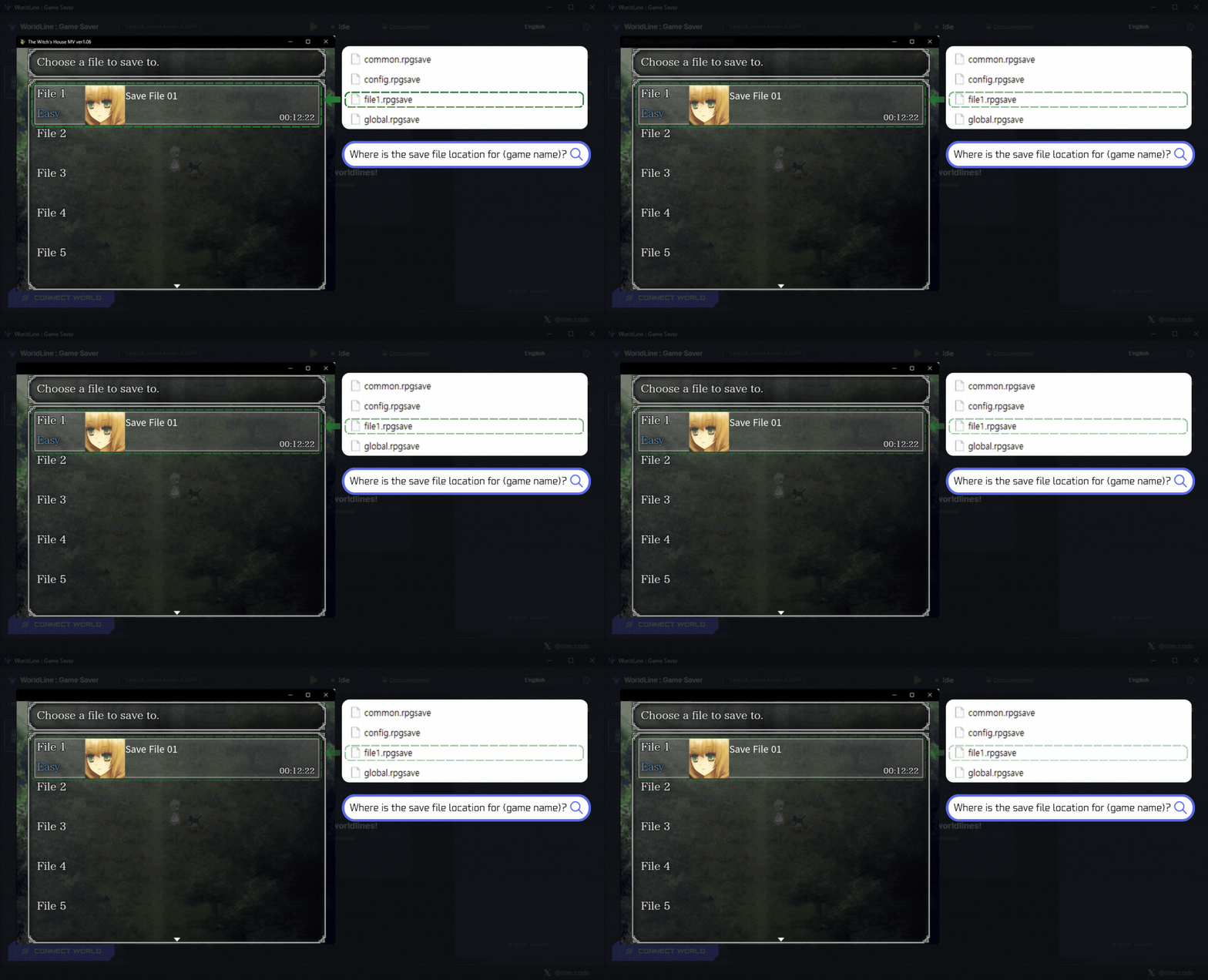
1. Prepare the actual game save file. If you do not have a save file yet, play the game first and create one.
If the game provides multiple save slots, connect the save file of the slot you want to use.
WordLine runs only when saving to the connected slot. Other slots can be used as temporary save slots.
2. If you cannot find the game's save file, search the internet for that game's save file location.
You can find it quickly.
1. Click the library where you want to apply the save file. You will see the Connect Save Slot button. Click it!
2. In File Explorer, connect the actual game save file you prepared in advance.
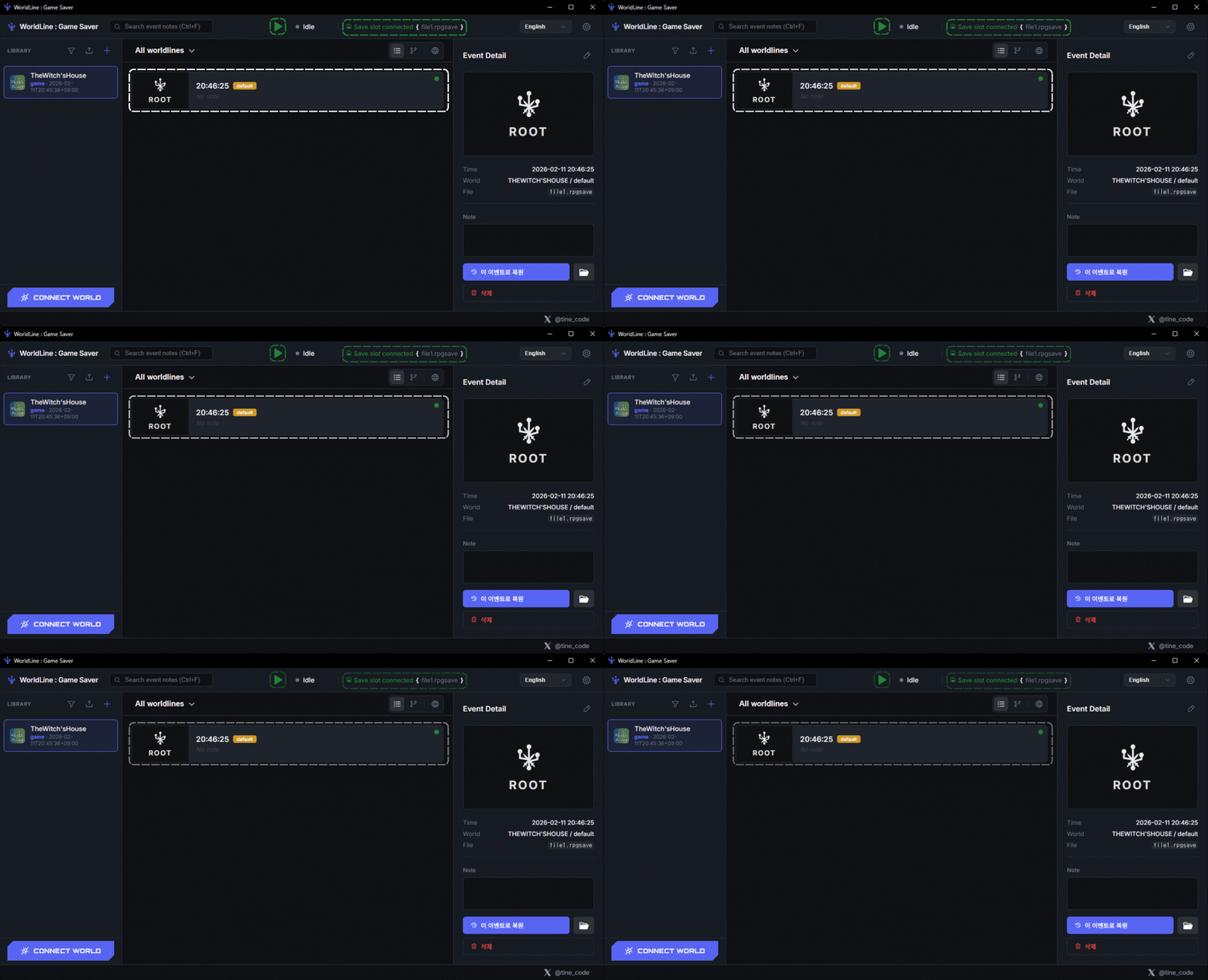
1. Congratulations! The save slot is connected successfully and the ROOT timeline is created.
2. Press the play button to track save files. Continue to Step 3.
Step 3. Launch Game
Run the game after setup and keep tracking active.
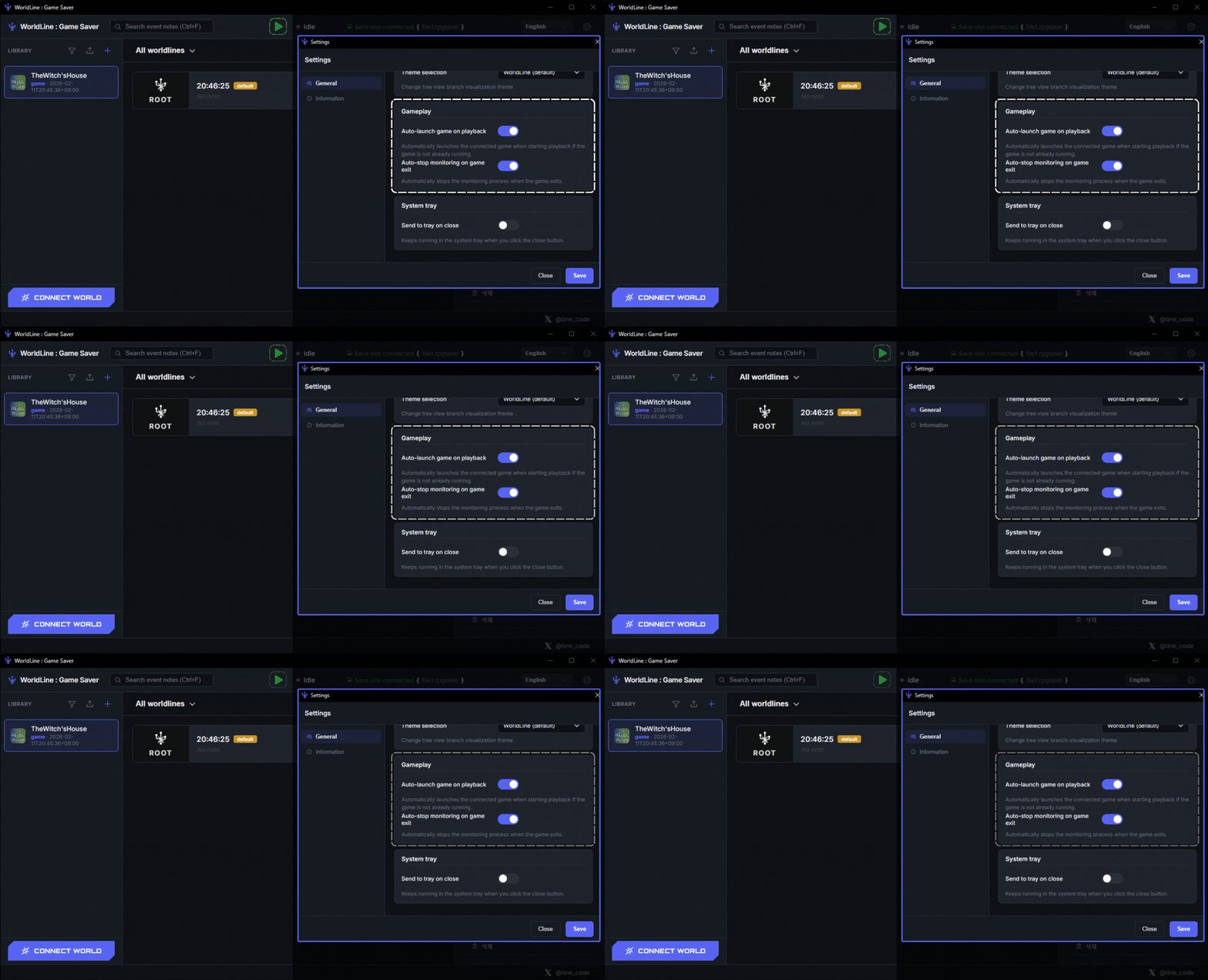
1. You can manage game launch features in the Game Launch section of the Settings page.
2. Even if 回放时自动启动游戏 is not enabled, pressing Play lets WordLine track save files normally!
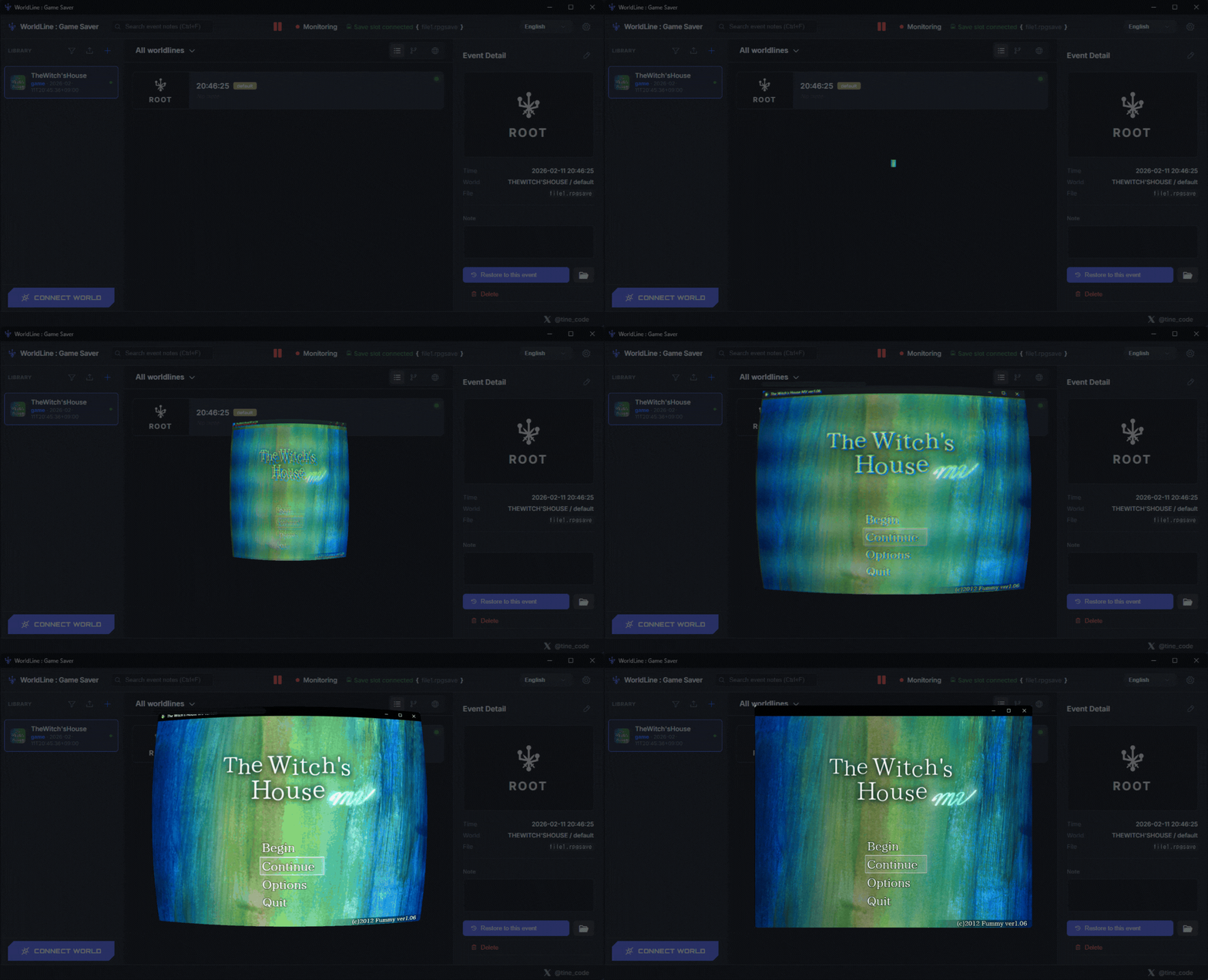
1. Press the Play button to launch the game. Check Step 4 to learn how to save files!
Step 4. 保存存档
在游戏中保存,并确认事件是否记录到时间线。
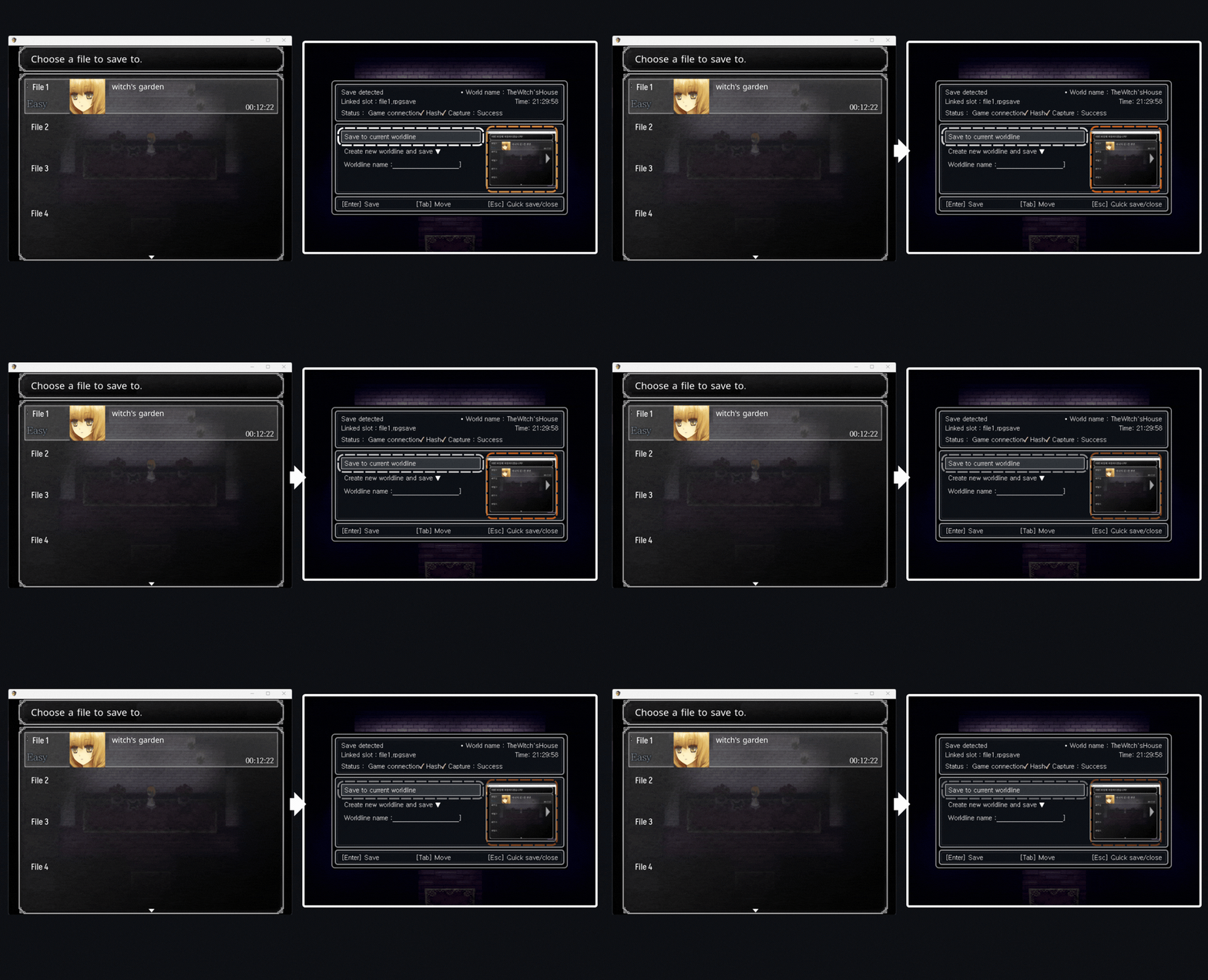
1. 玩家在游戏中保存时,WordLine 会自动识别并打开保存窗口。
如果游戏有多个存档槽,请保存到与 WordLine 中已注册存档文件一致的槽位。
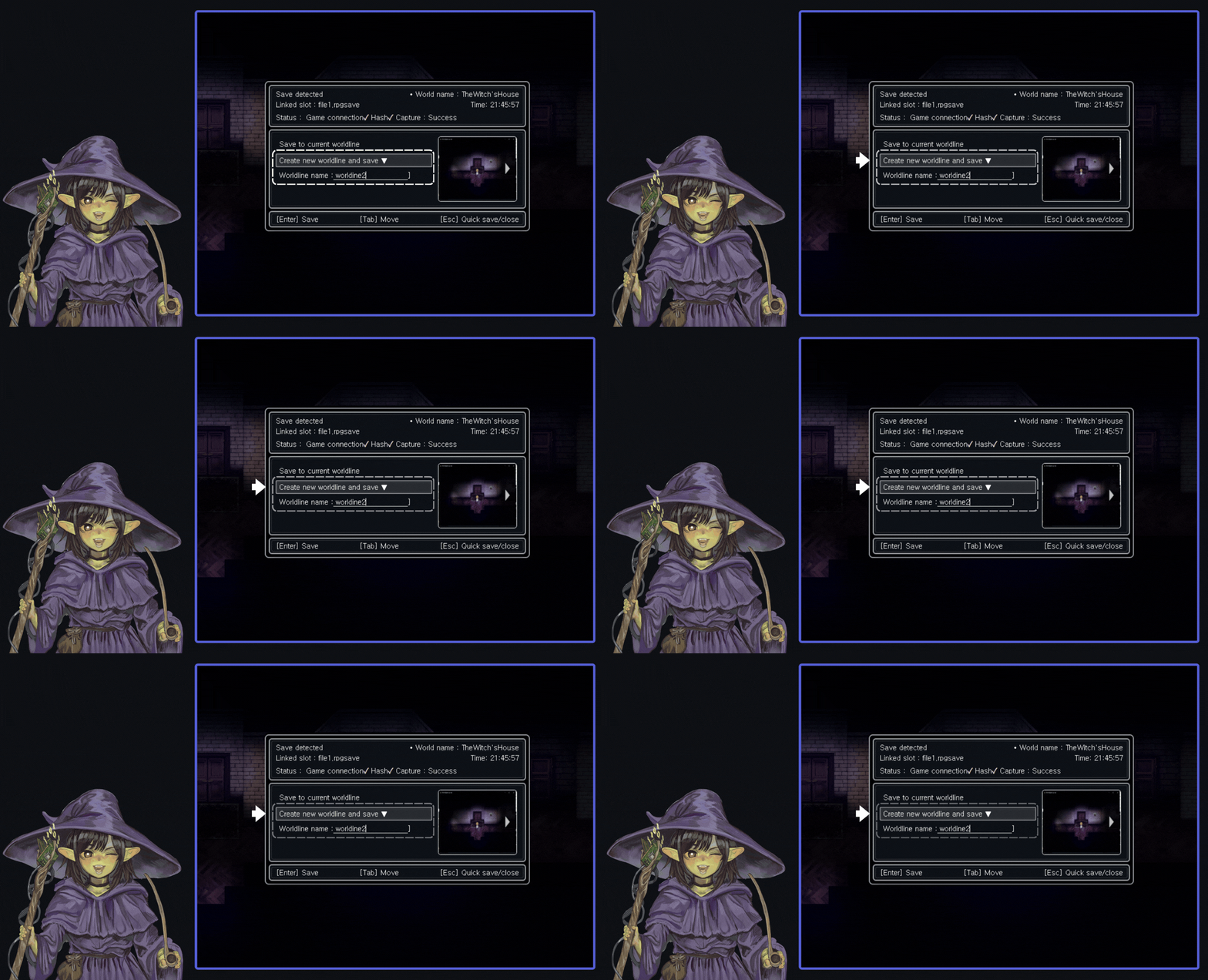
2. 你可以保存到现有世界线,也可以创建新的分支。
3. 如果你不满意拍摄的快照,可以通过 ▷ 进行切换。
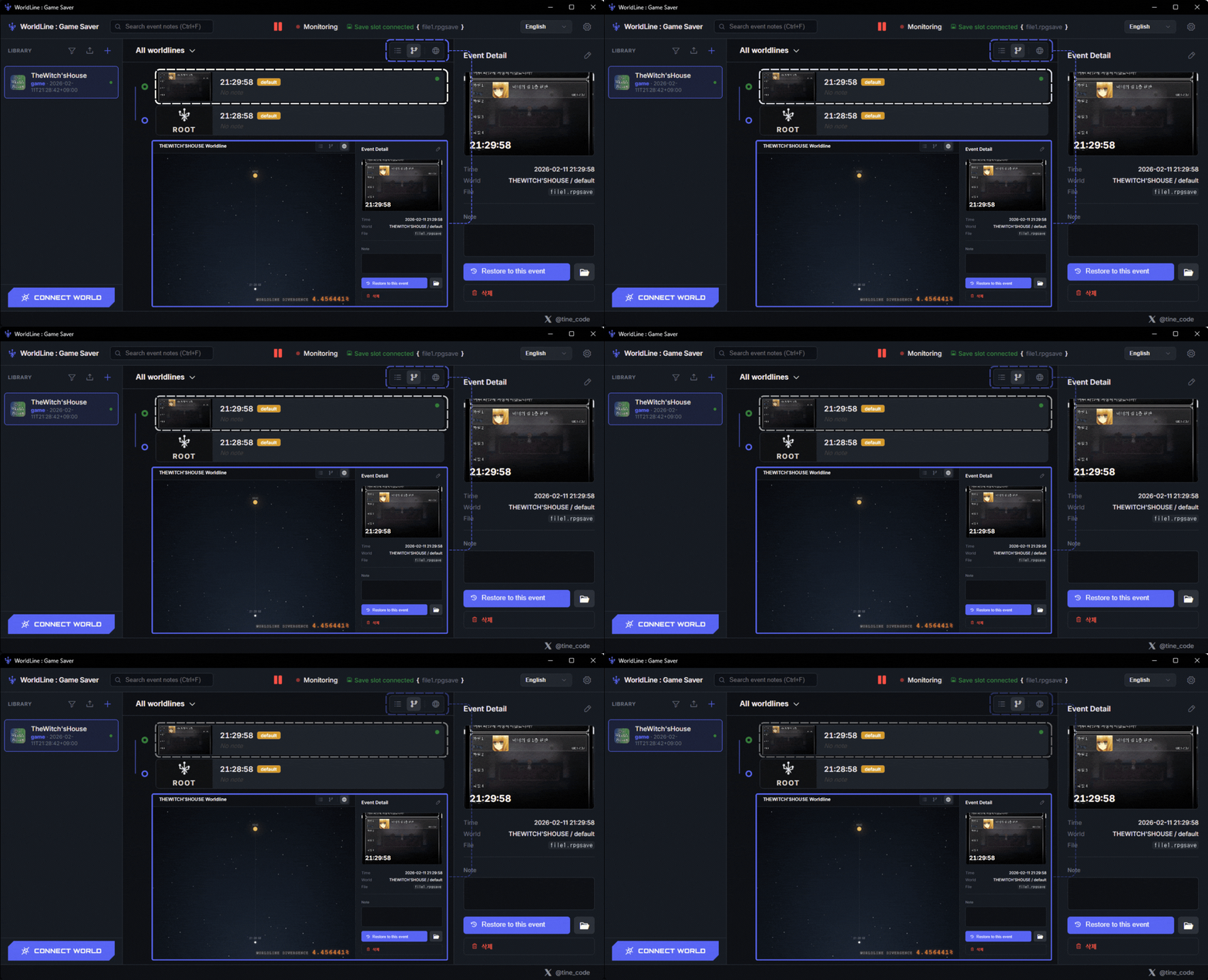
1. default 世界线中已记录新的时间线!
2. 你可以通过多种方式查看时间线!
1. 点击 创建新世界线并保存 后,可以为新的世界线指定名称。
2. 保存时,时间线会从现有世界线分离出来,并保存到新的世界线中。
通过这种方式,你可以把不同选择拆分成分支来管理游戏存档!
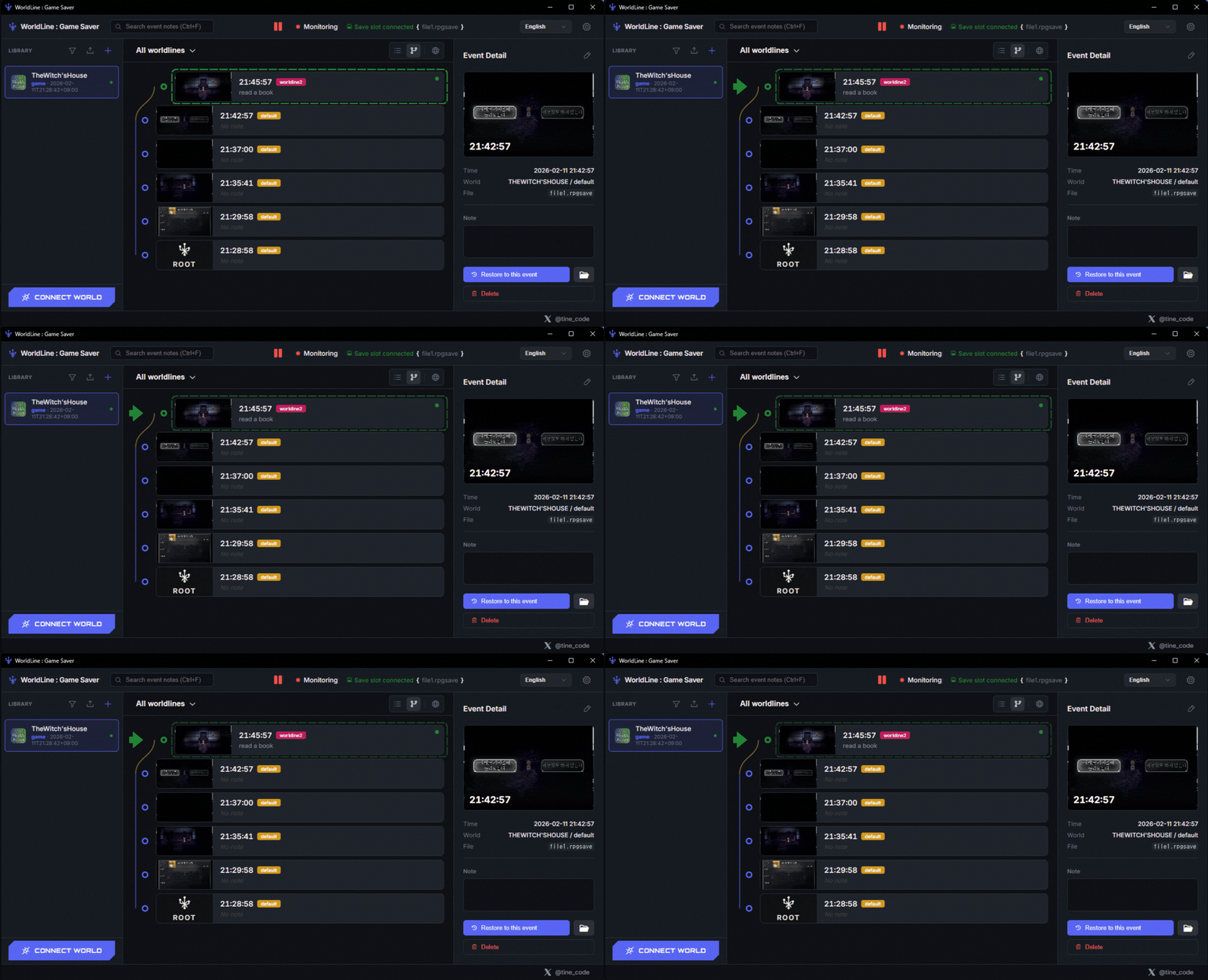
名为 worldline2 的新世界线已经创建。
你可以通过多种视图直观地查看和管理世界线!
Step 5. Load Branch Point
Load a recorded branch point to continue from past state.
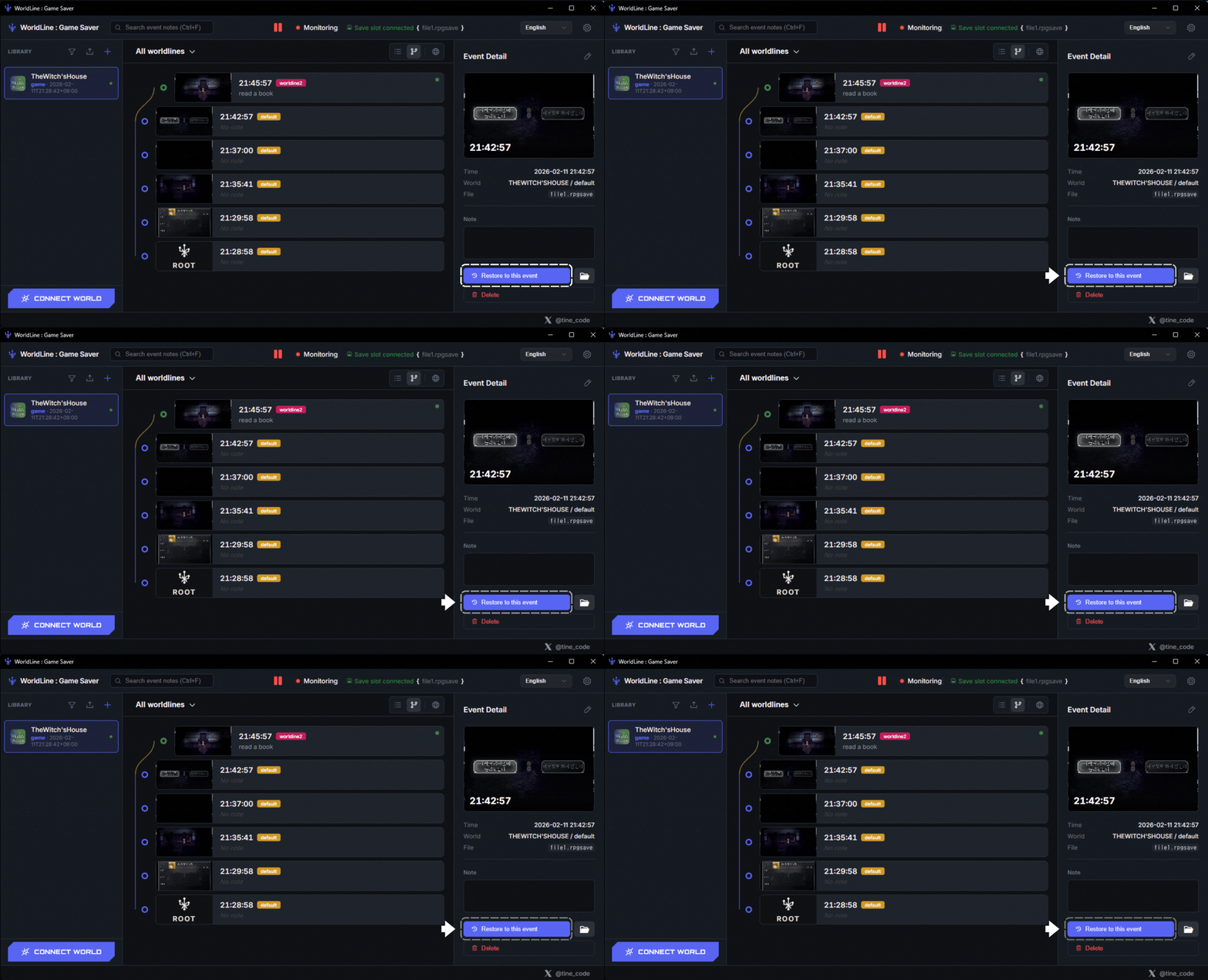
1. Select the timeline you want to play and click the 恢复到此事件 button.
I selected the last timeline in default.
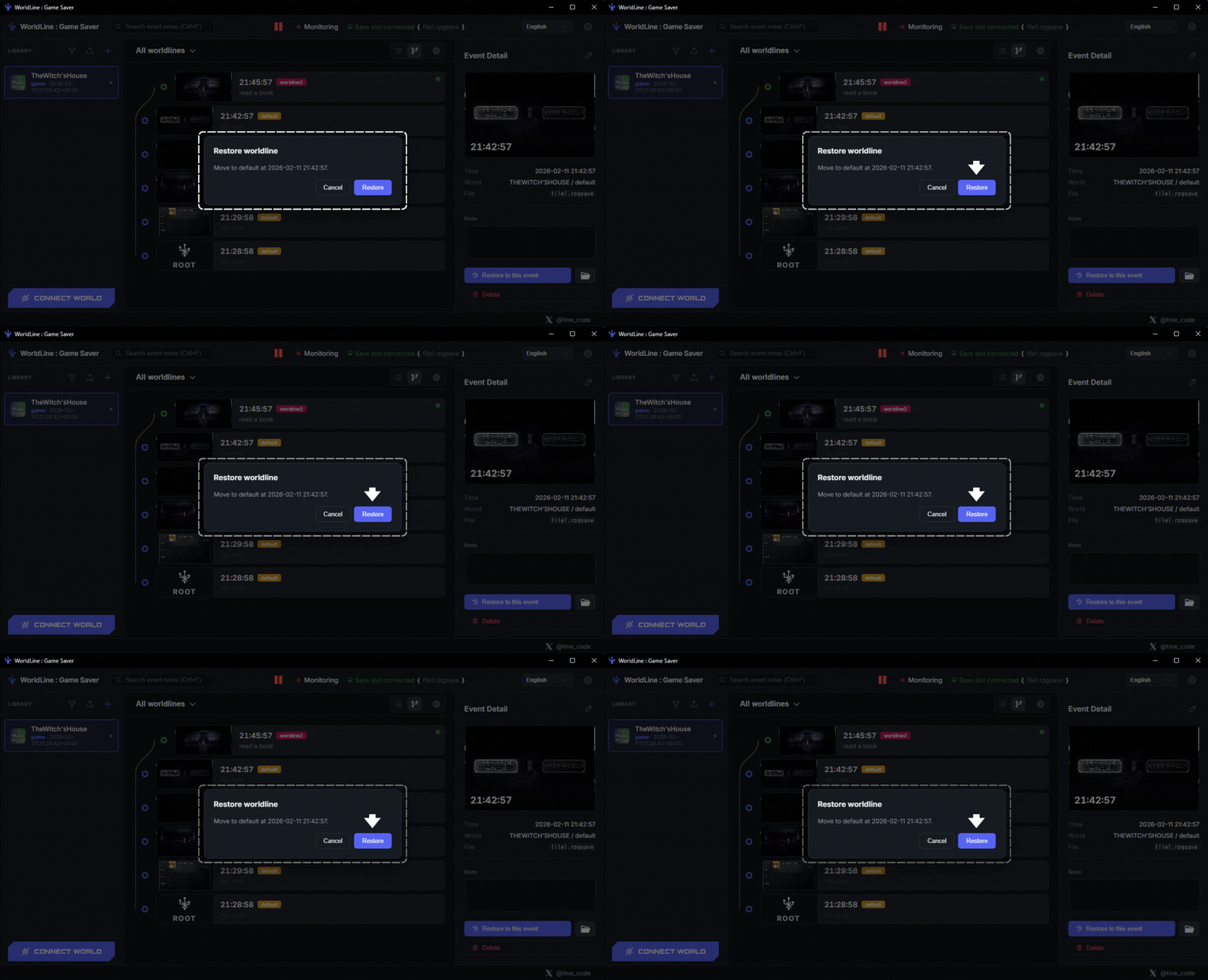
1. Check and decide the timeline you want to switch to at last!
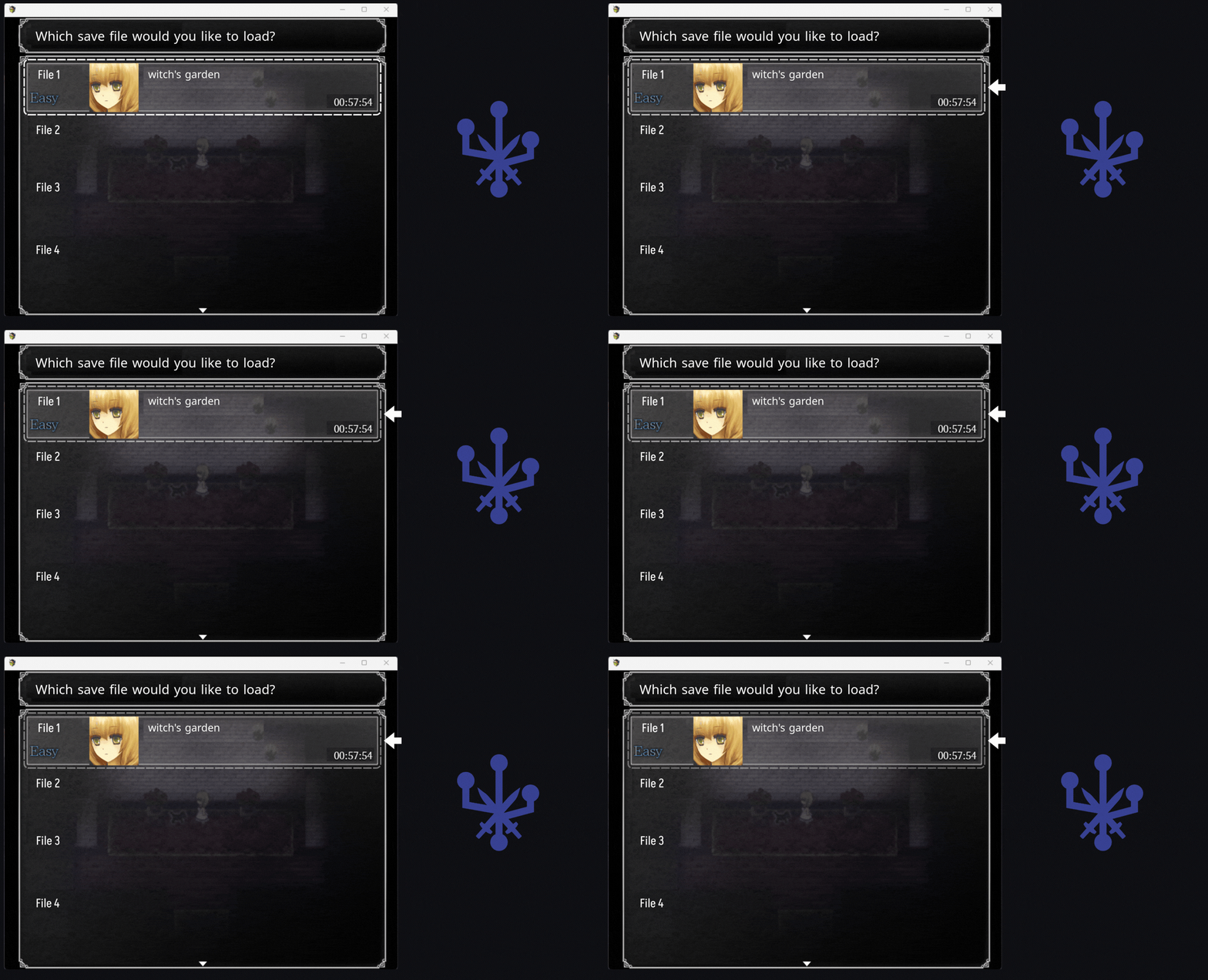
1. In the running game, load the save file again.
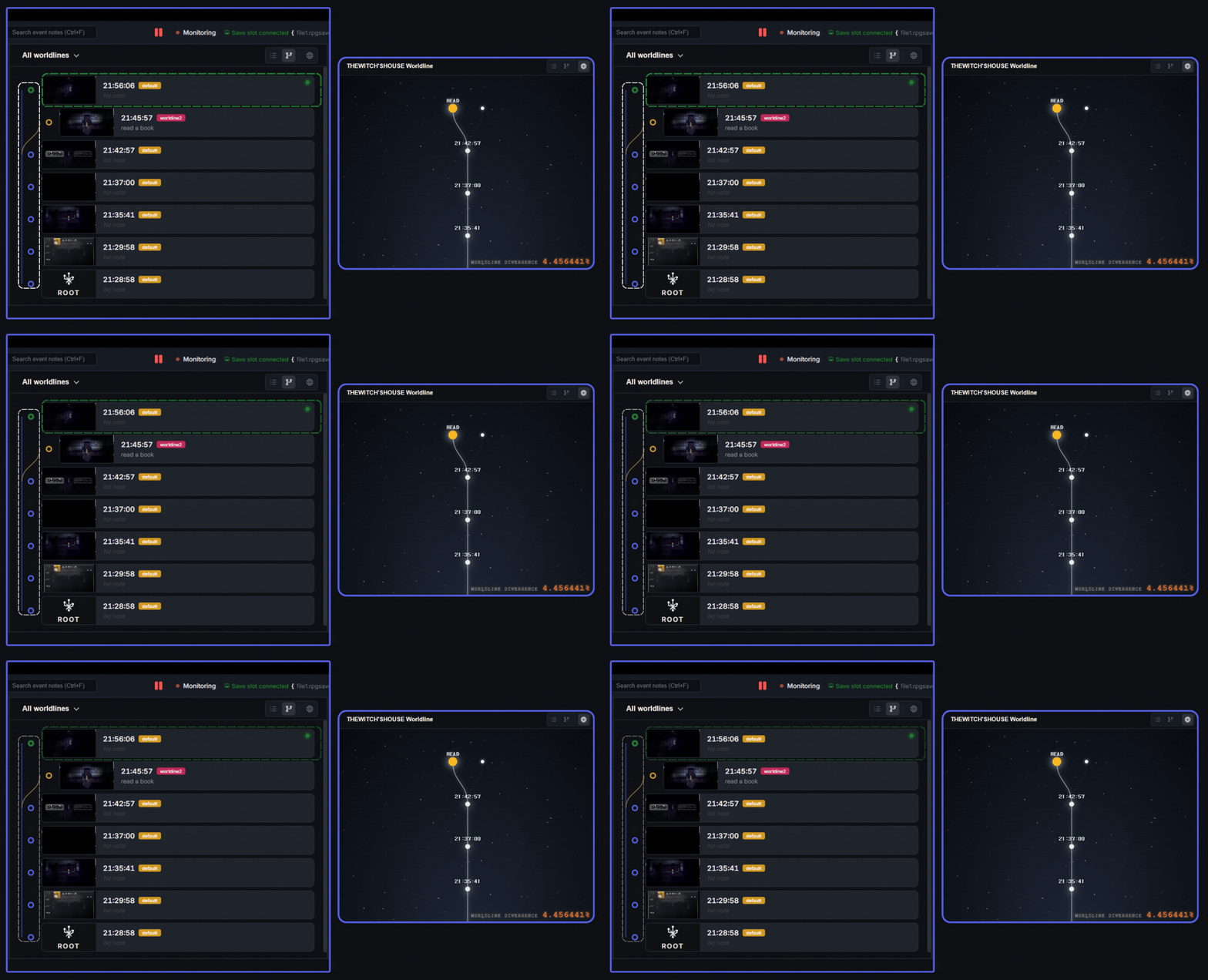
1. Switched to the default branch line successfully. Now record a new game timeline with new choices!
2. Check branch points intuitively!
Change User Language
Choose a language in settings and apply it to all UI.
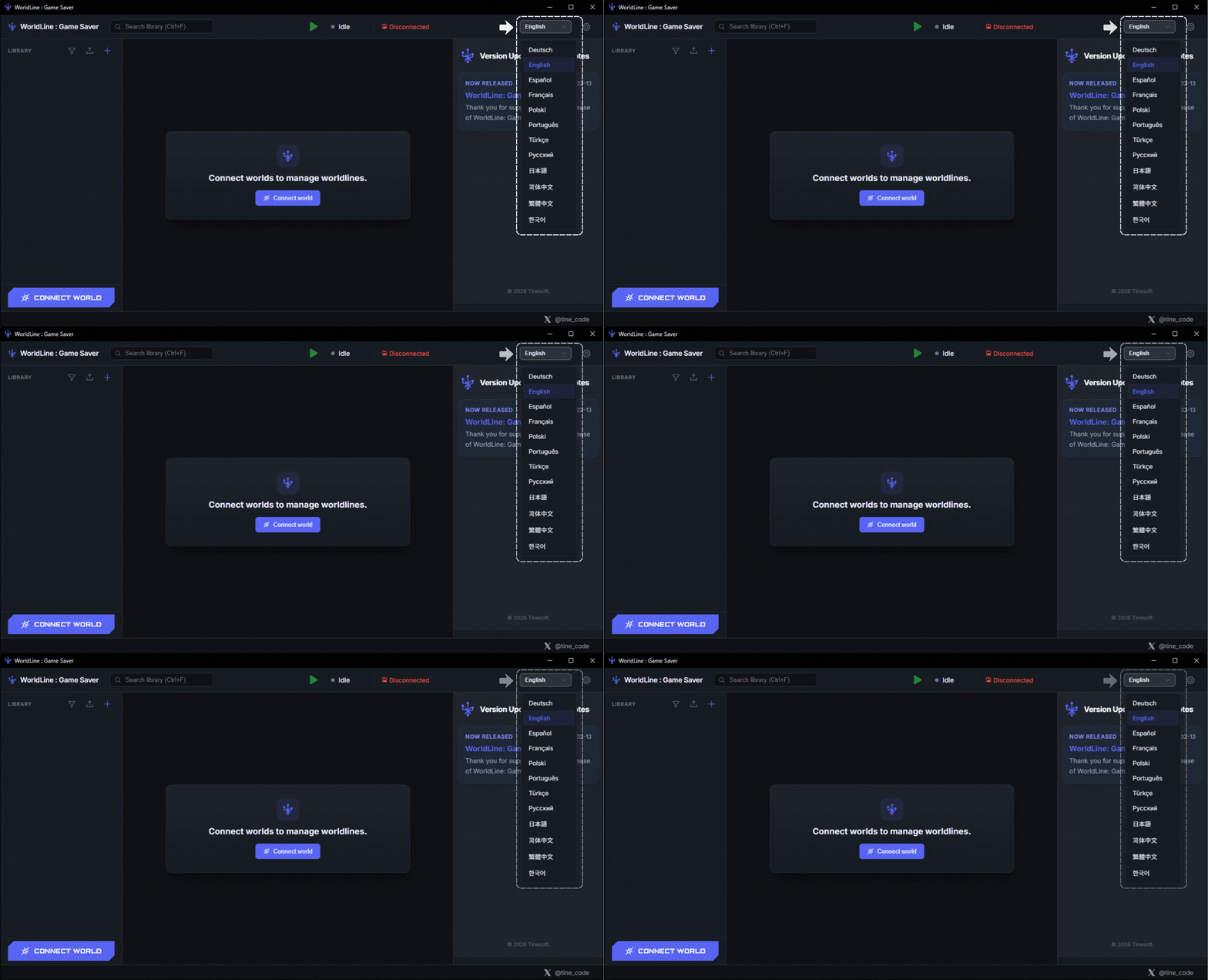
1. Click the button at the top of the main window to quickly change the program language!
2. If your preferred language is not listed yet, contact us anytime at tinesoft.service@hotmail.com.
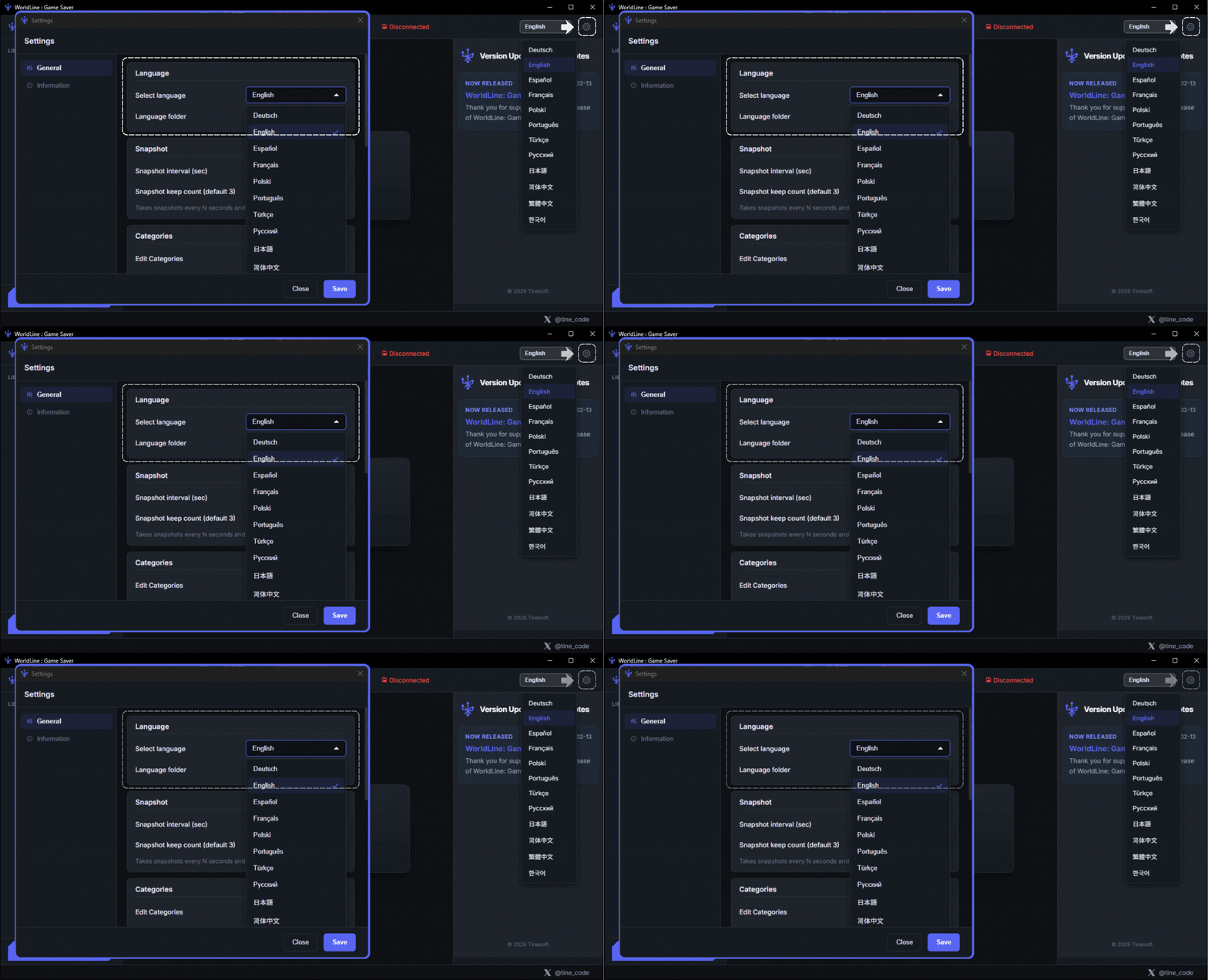
1. You can also change the program language in the settings window.
Change User Theme
Switch the app theme to your preferred style.
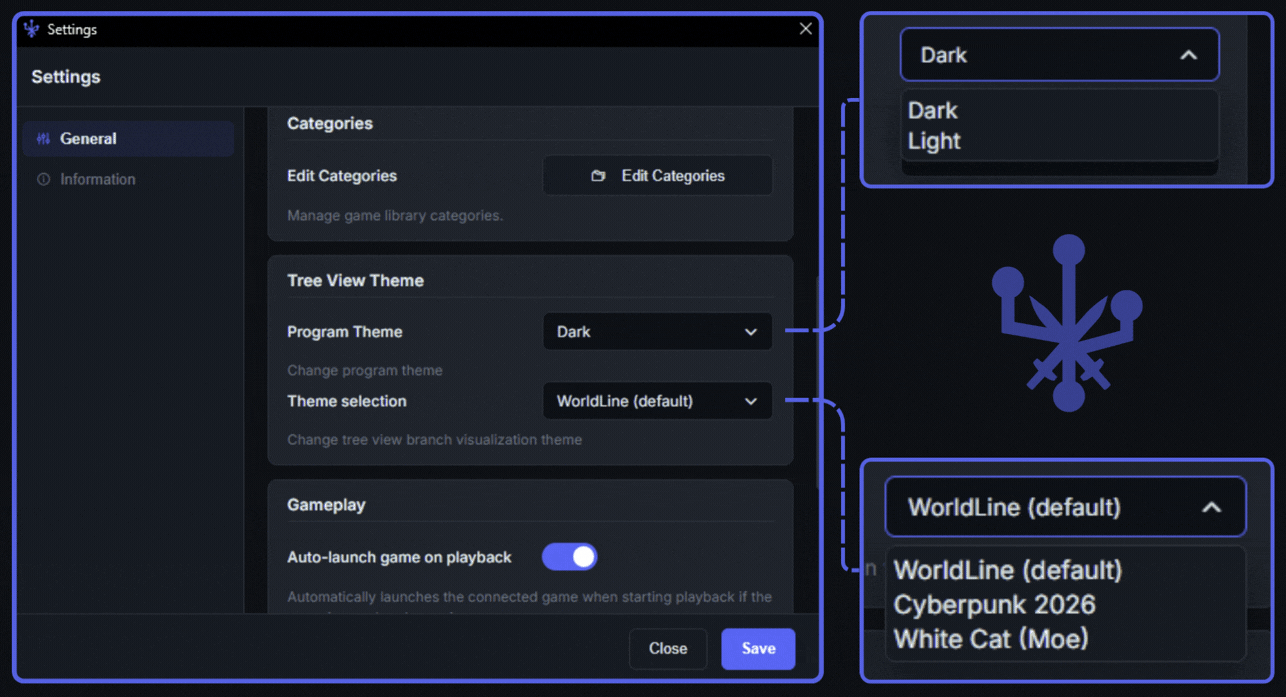
1. You can change the overall program theme and the worldline viewer theme.
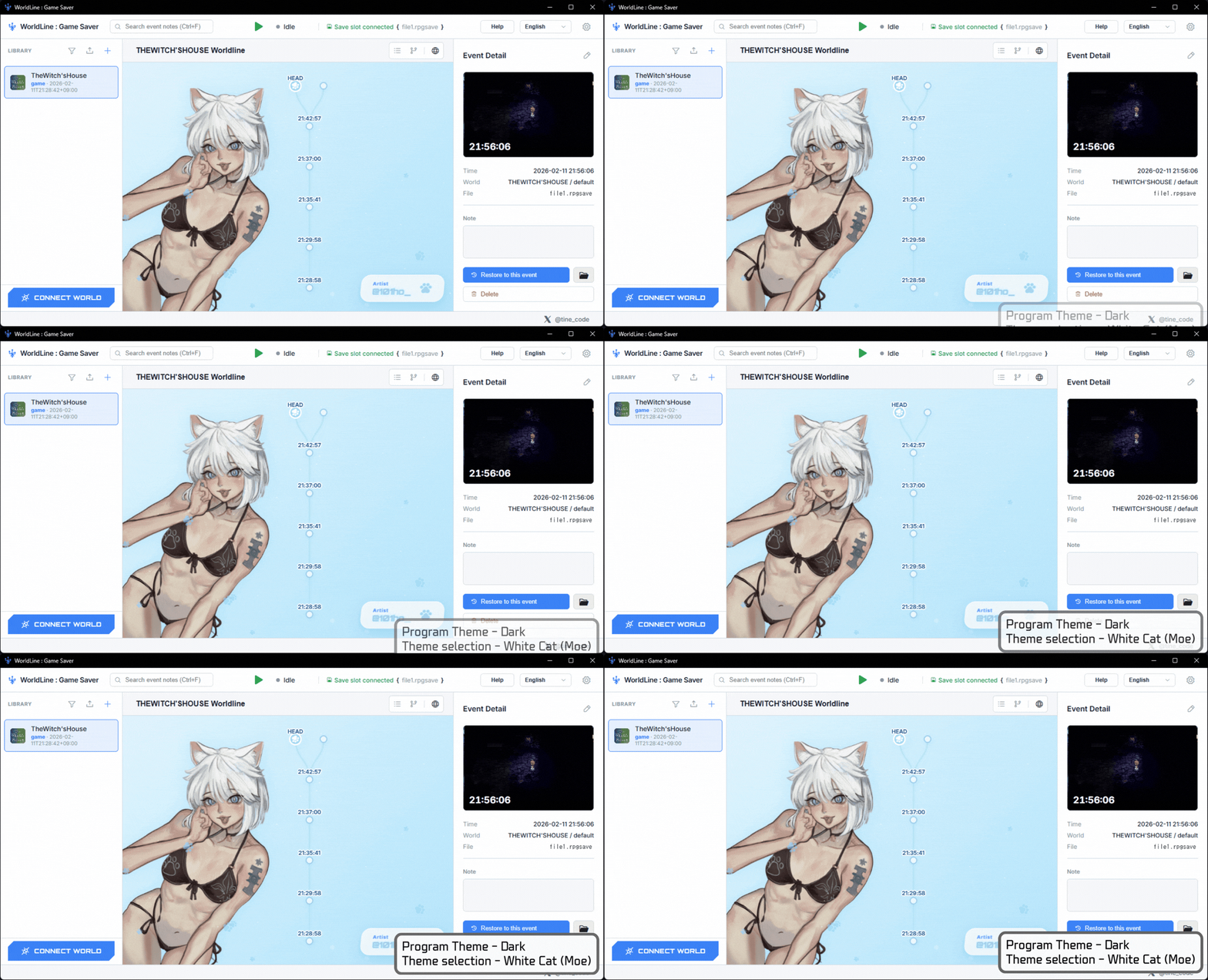
1. This is WordLine with the Light theme and White Cat (Moe) theme applied!
2. If you have a theme idea to add, contact us at tinesoft.service@hotmail.com!
Snapshot Setup
Configure snapshot interval and retention count.
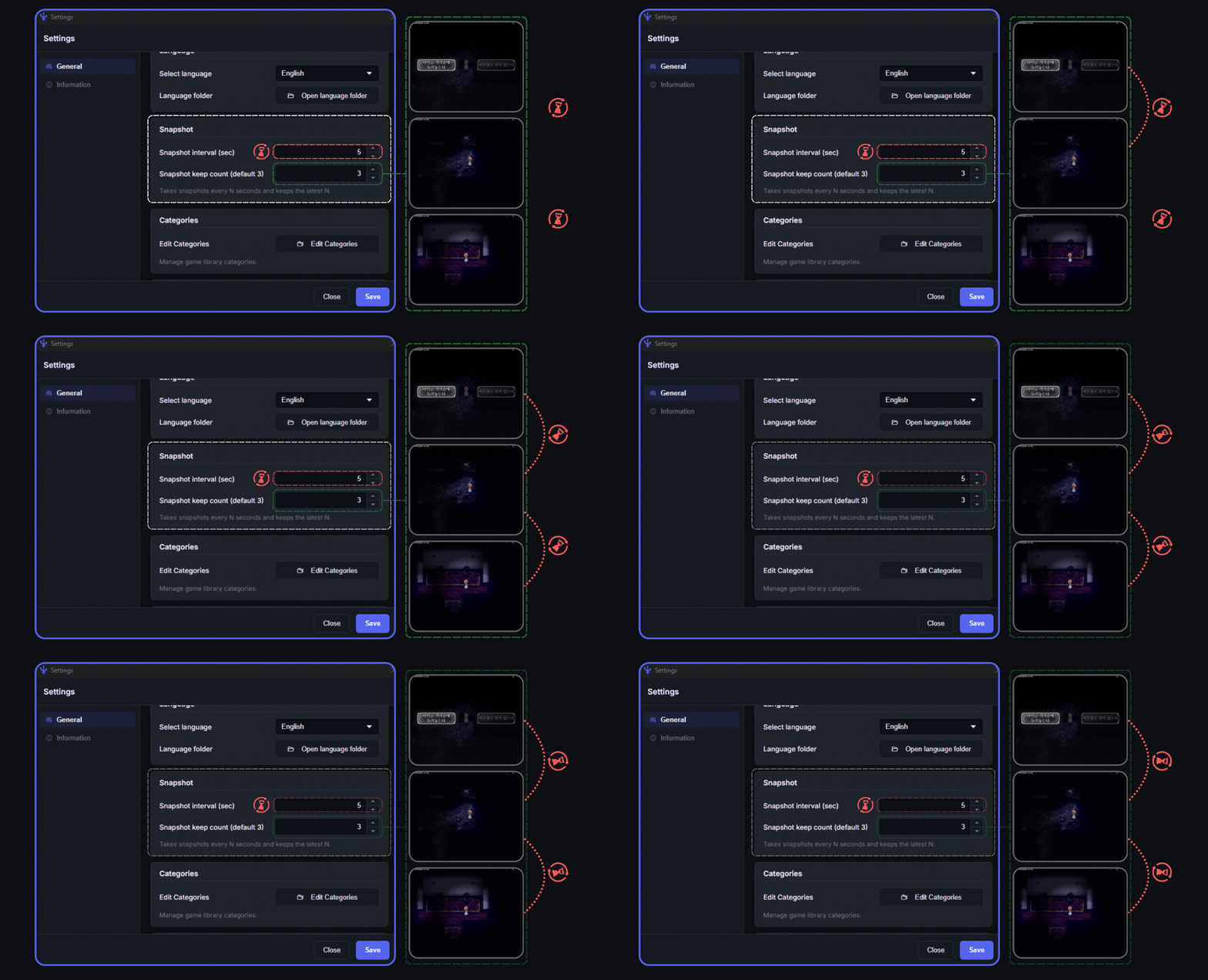
1. Set the timer interval for taking snapshots in 快照间隔(秒).
In this example, a snapshot is saved every 5 sec.
Do not worry about storage. It only uses space up to the user-defined 快照保留数量(默认 3) size.
2. 快照保留数量(默认 3) means how many snapshots to remember.
In this example, snapshots are taken every 5 seconds and 3 snapshots are retained. It keeps 15 sec of snapshots from the save point.
Set how many snapshots to keep.
Edit Categories
Add or update categories used by events.
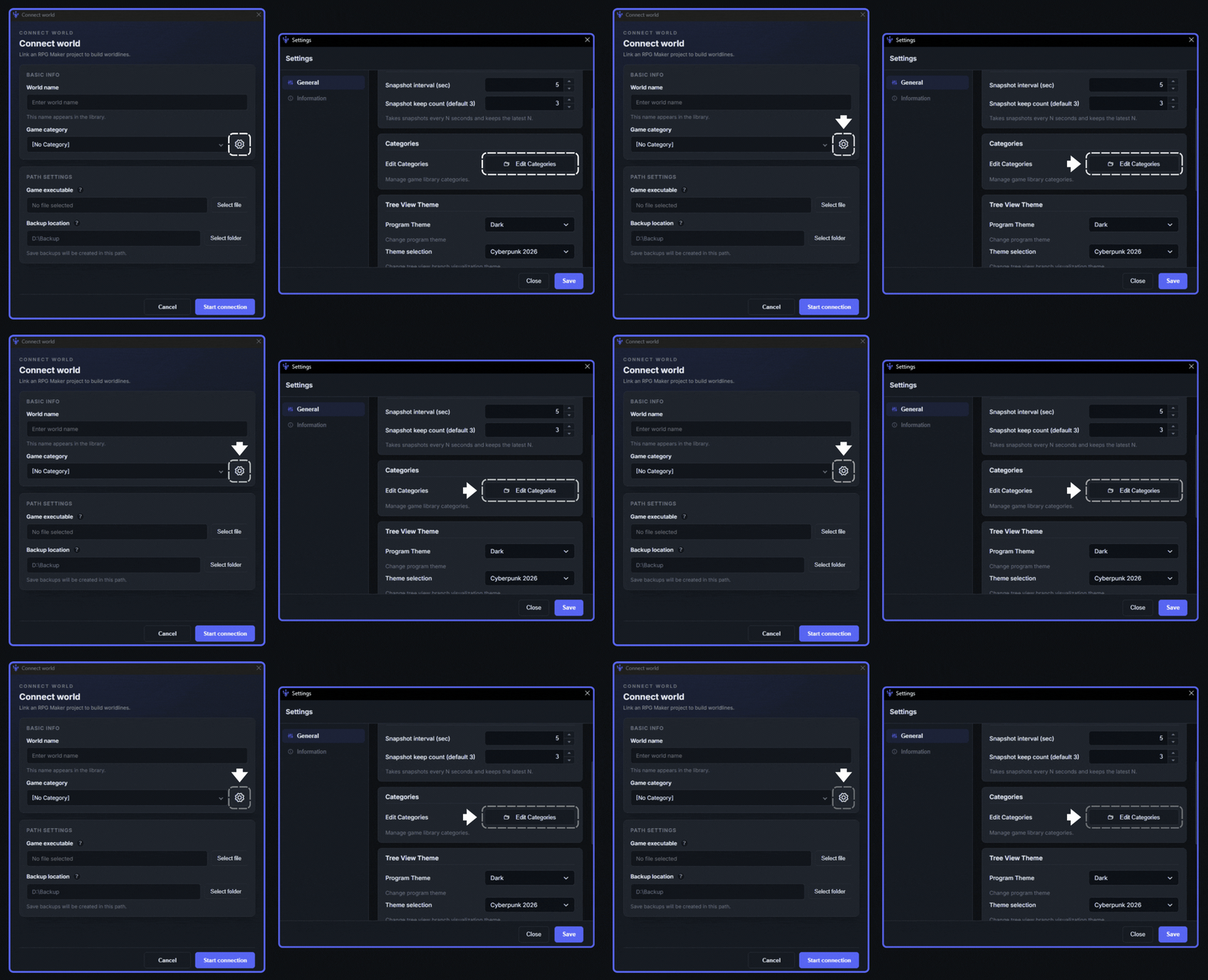
1. You can edit categories on the Connect World page or in the Settings window.
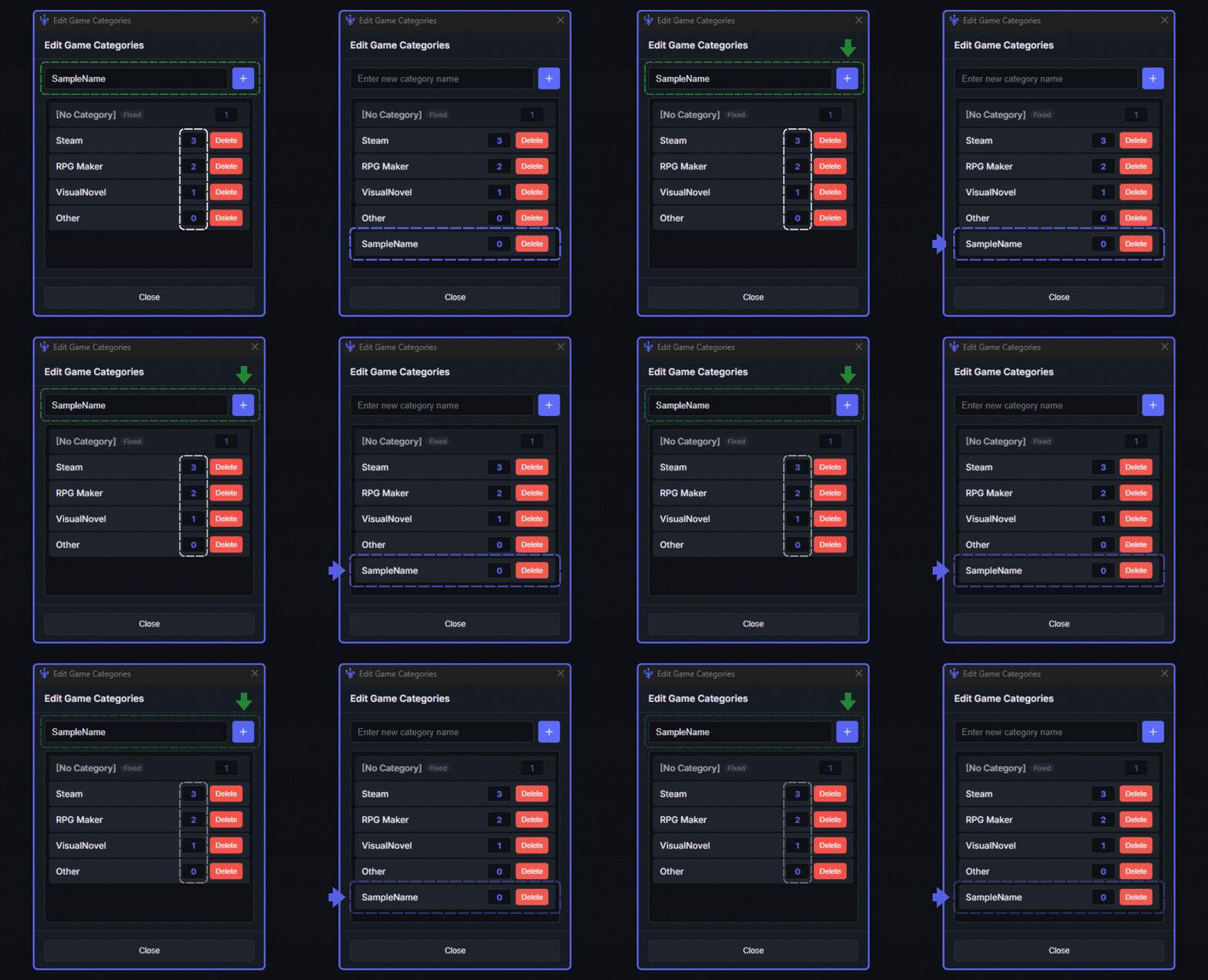
1. Enter a category name and click the + button to register it.
2. You can check how many libraries are currently assigned to each category.
3. SampleName was successfully added to the category!
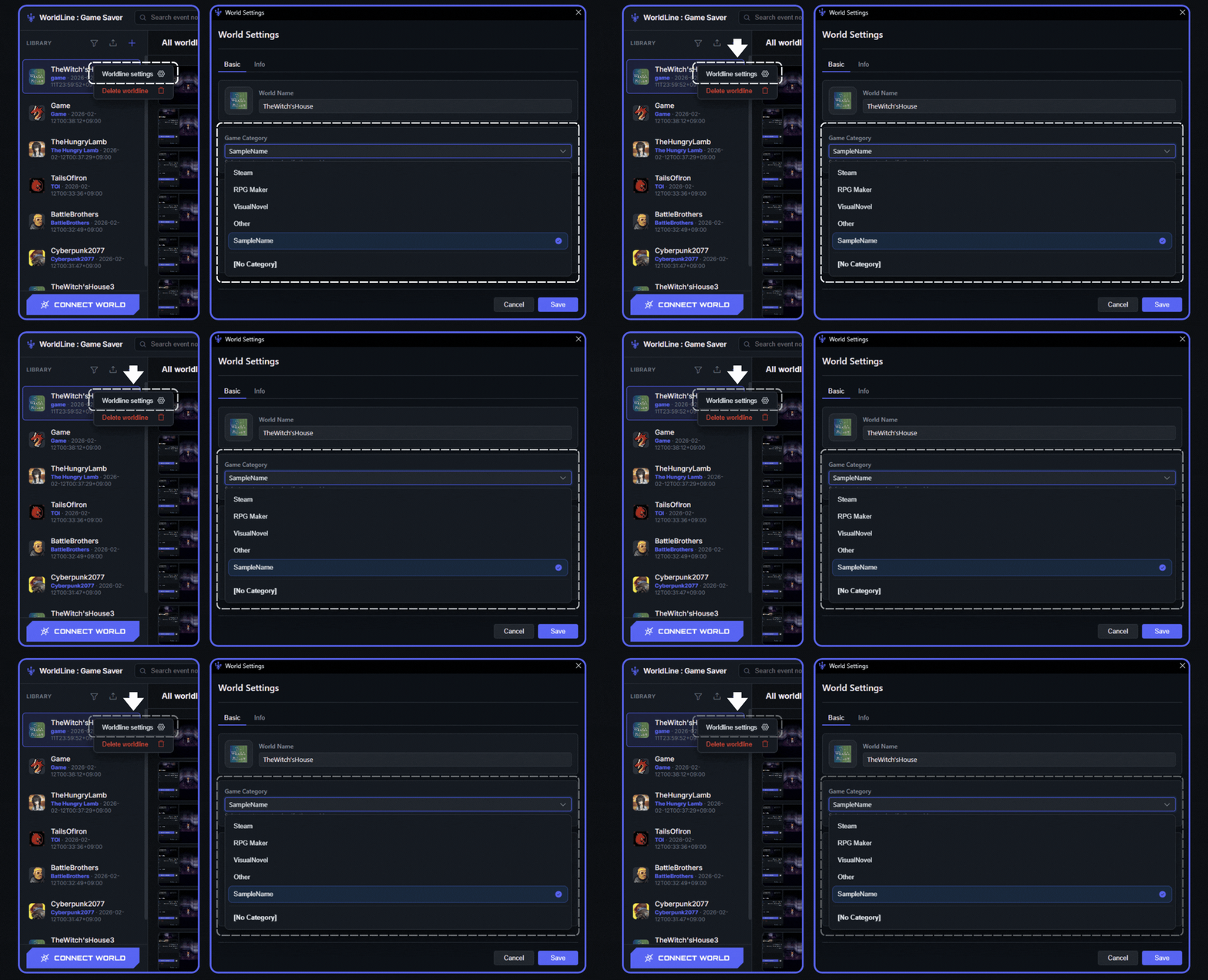
1. Right-click a Library, click Worldline Settings, and edit Game Category.
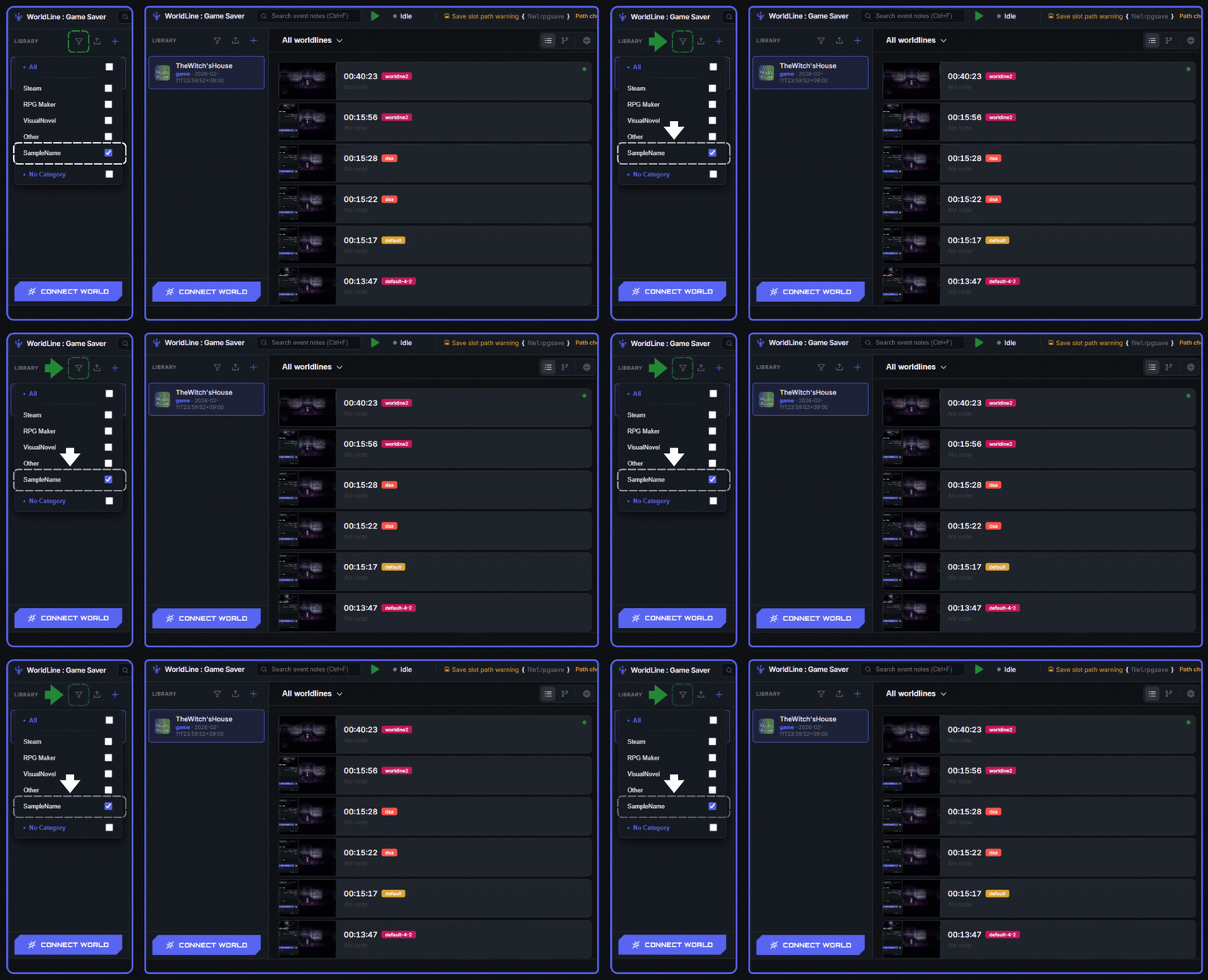
1. Click the Filter button to choose which Category of libraries will be shown.
Export All Saves
Export every save entry to a file.
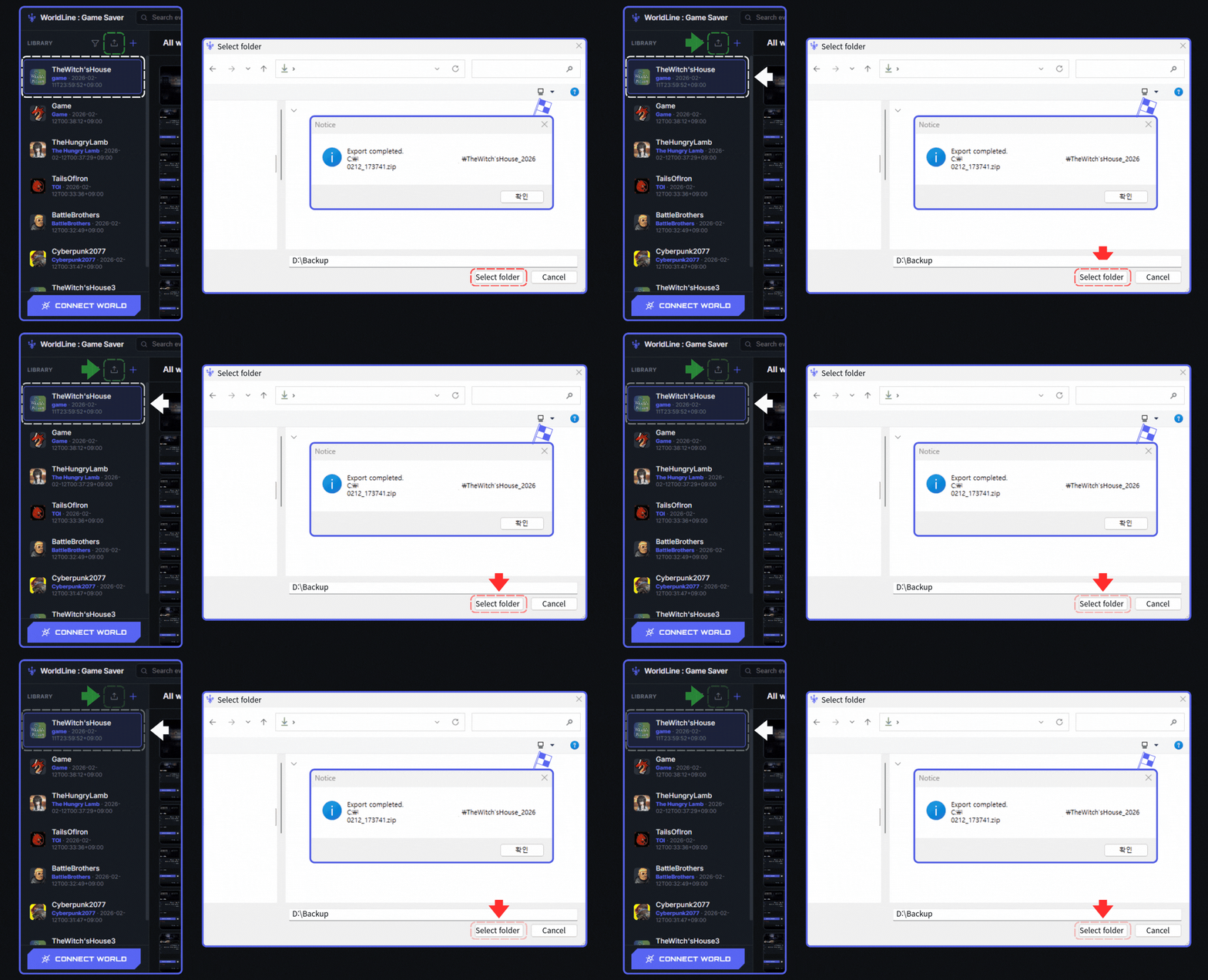
1. Select the Library you want to back up all save files from.
2. Click the Export icon button.
3. Choose a folder to save all exported save files.
Check the selected folder. You can find the compressed full save backup there!
Verify generated export file.
Import All Saves
Import previously exported save files.
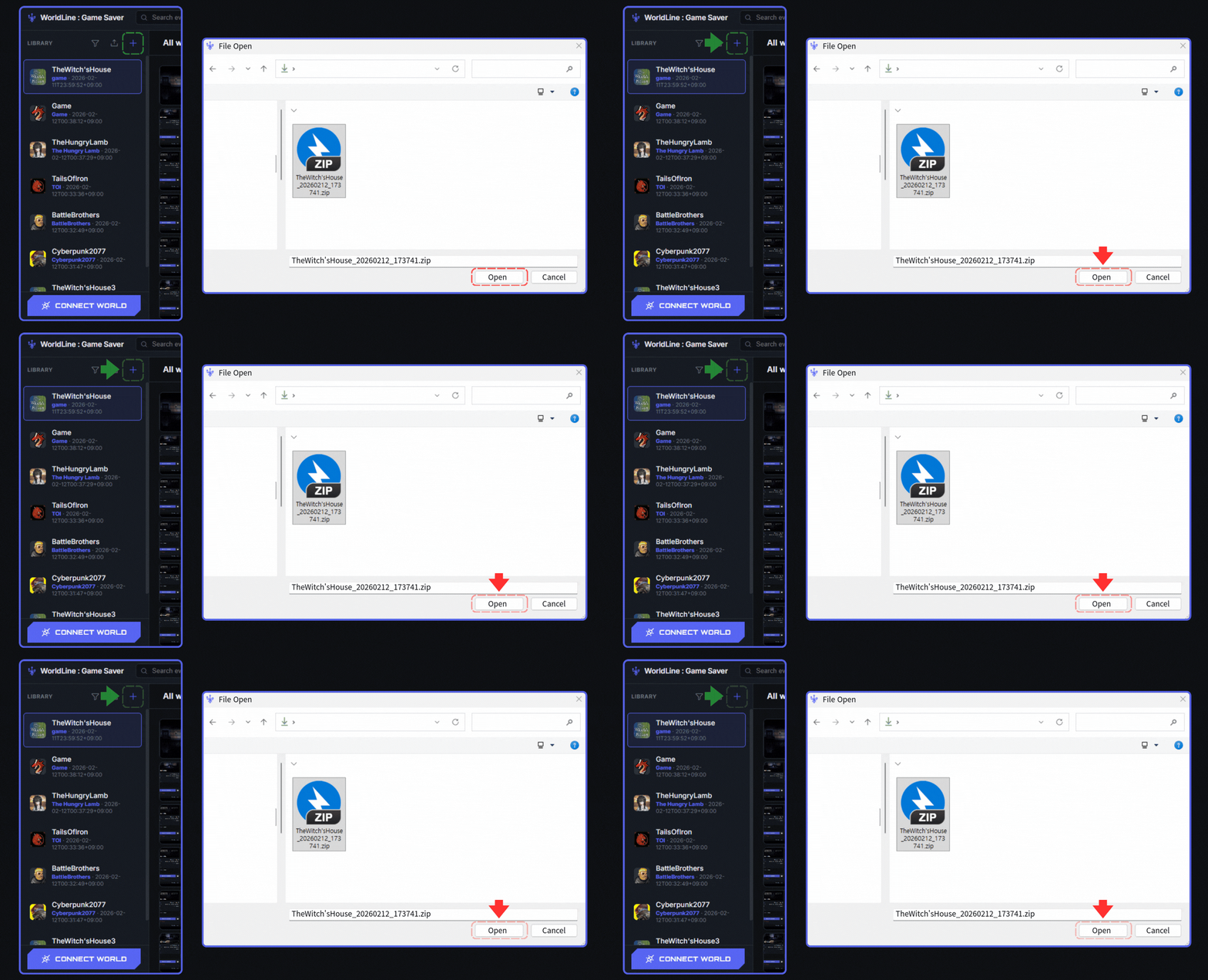
1. Click the Import icon button.
2. Load the compressed save archive file.
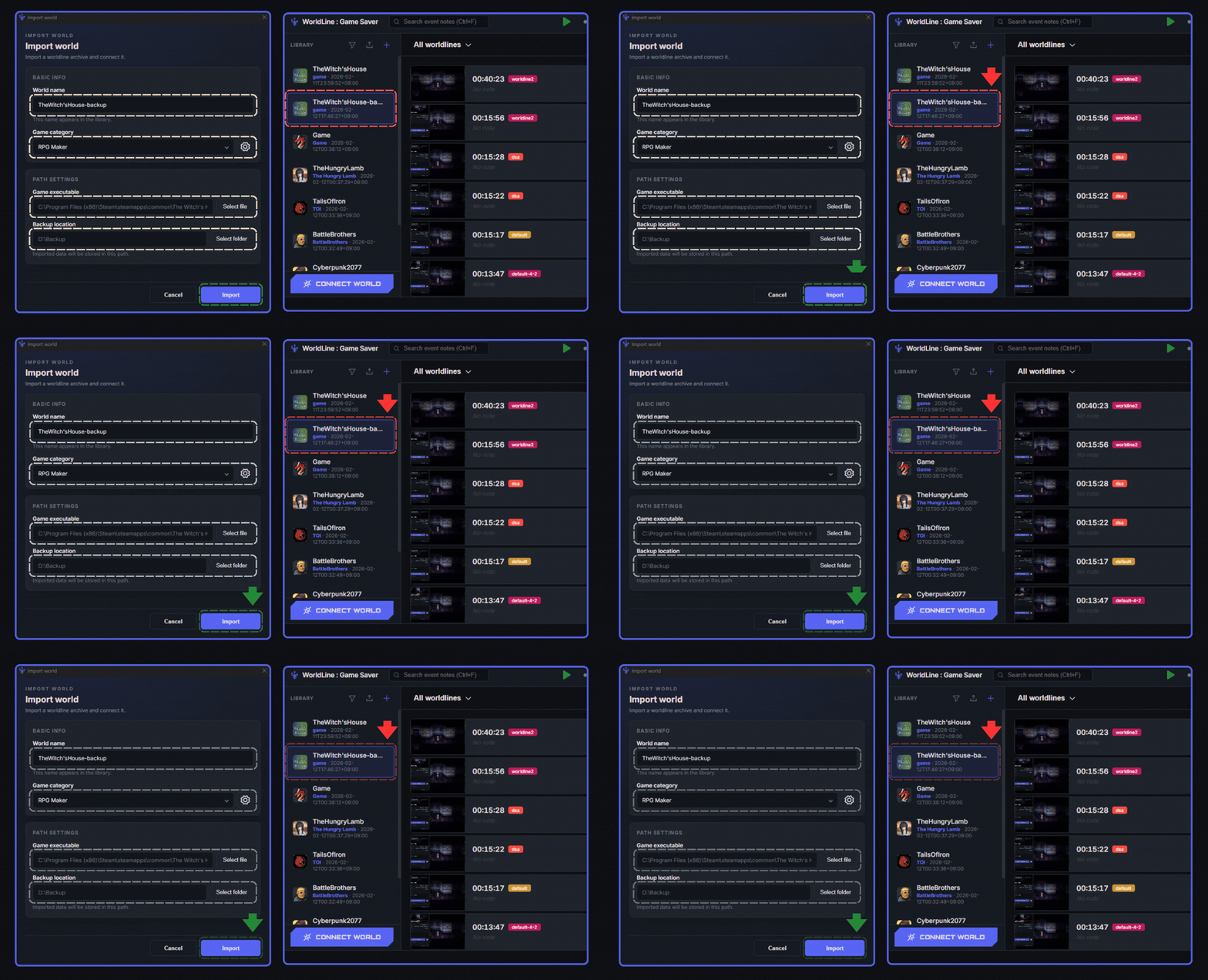
1. Set the library name and category to manage imported save files.
2. Set the game executable location and save file path to match your environment.
3. A new imported library has been added to the user's library!
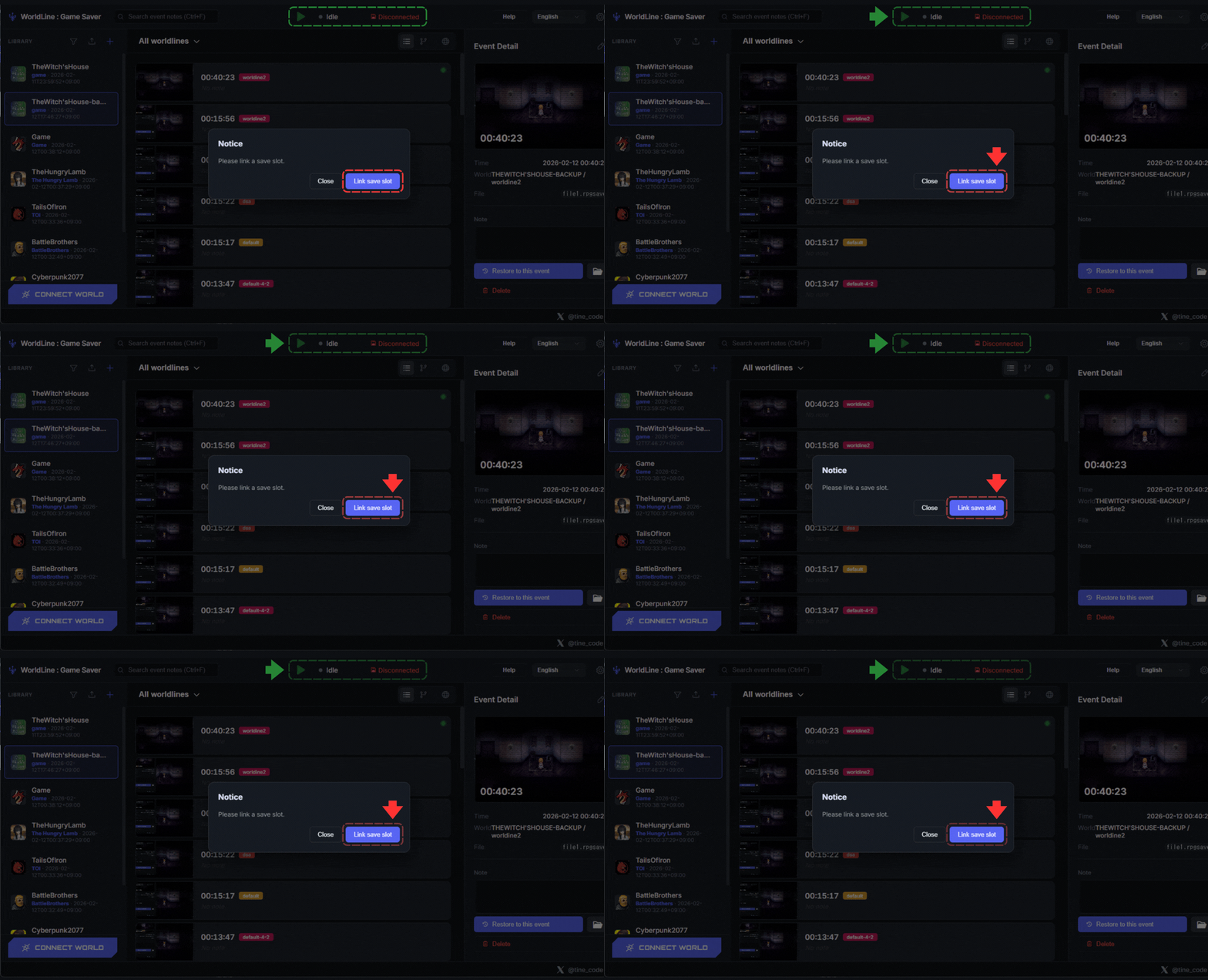
1. Press Play and you will see a notification like this.
2. Press the 关联存档槽 button!
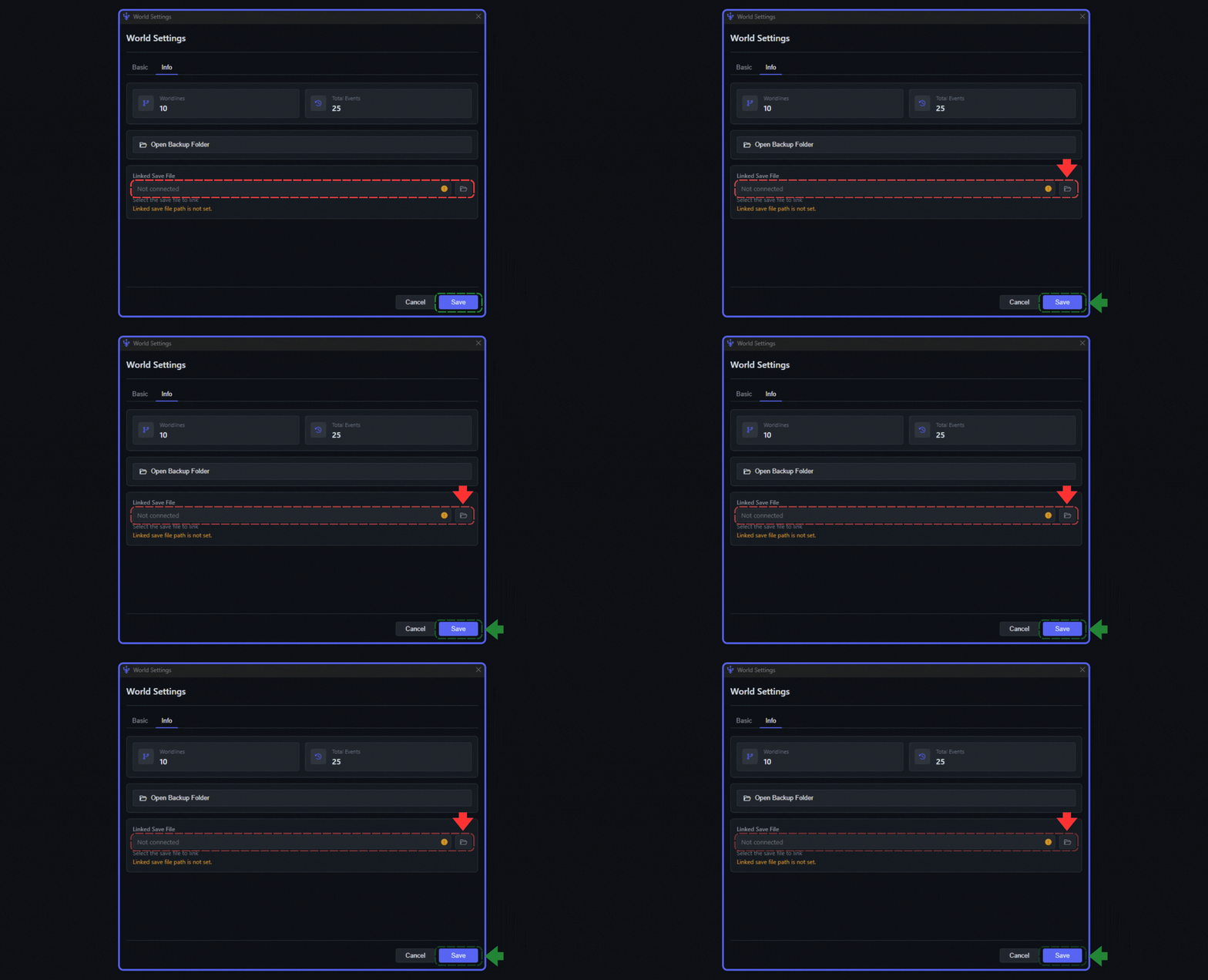
1. Connect the real user's game save file.
2. Press Save to complete all steps.
Using Search Tools
Use search and filters to quickly find the data you need.
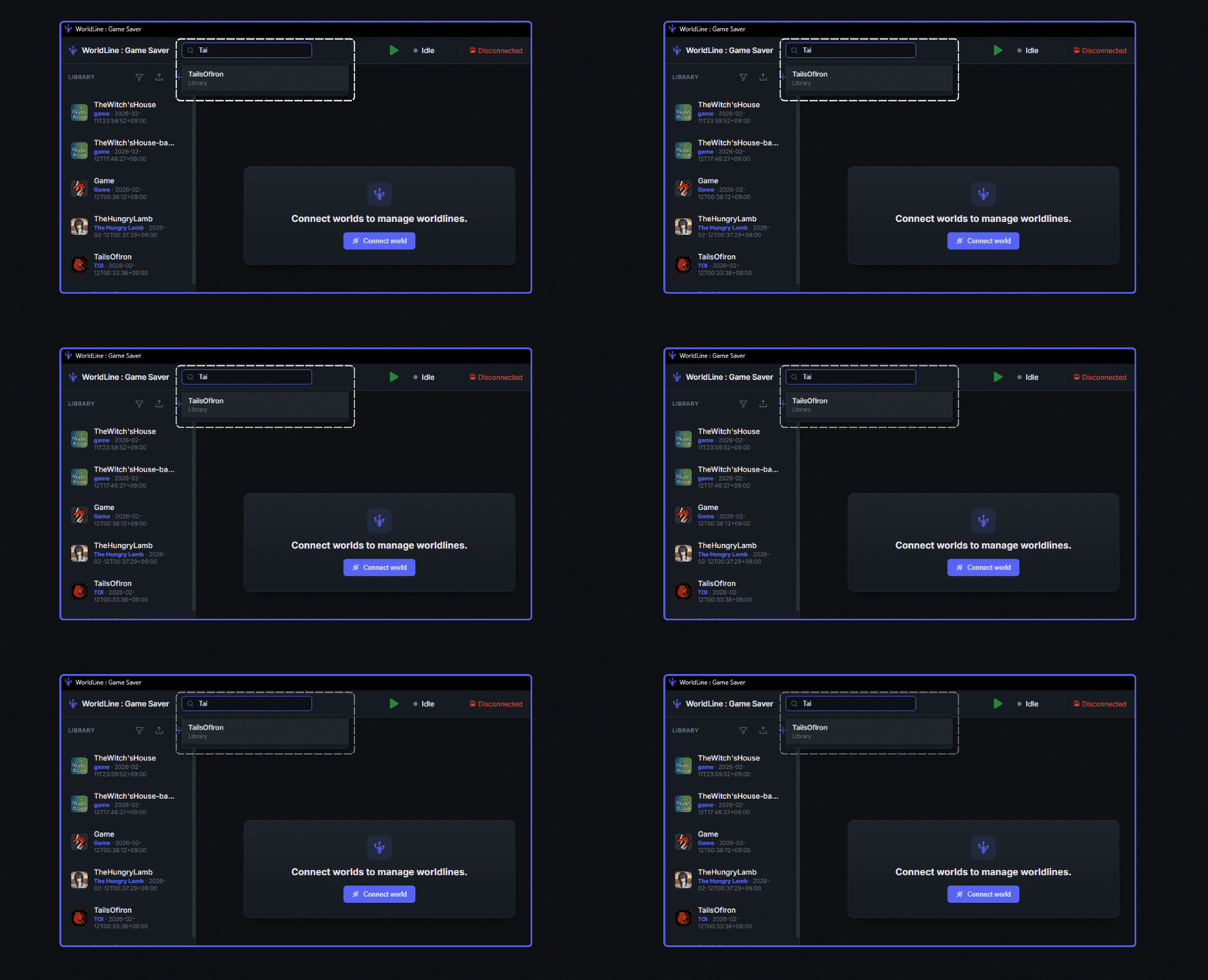
You can easily search libraries using the Search Box when no Library is selected.
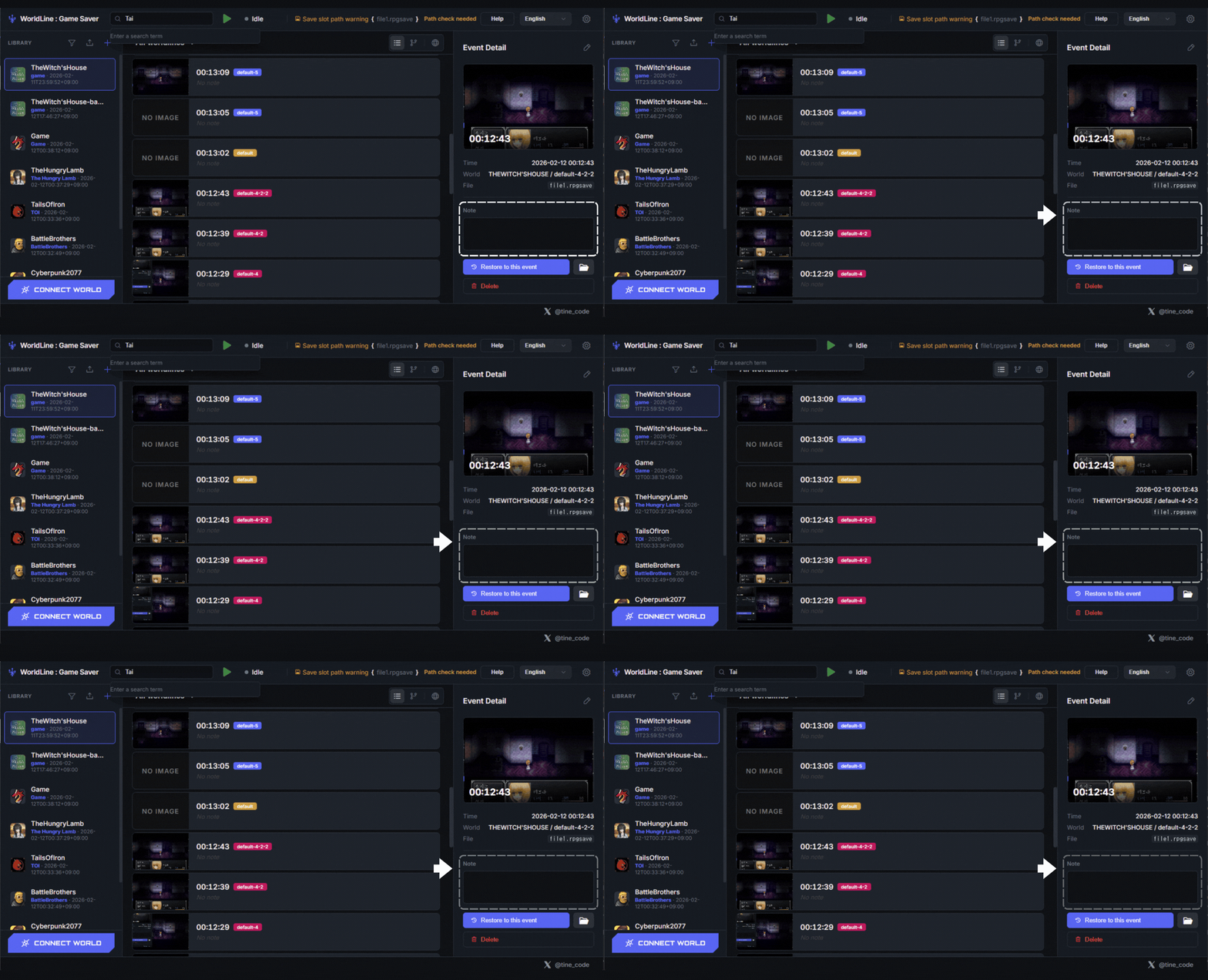
1. Select the Library that contains the event you want to search.
2. Enter a memo in Note to remember the event.
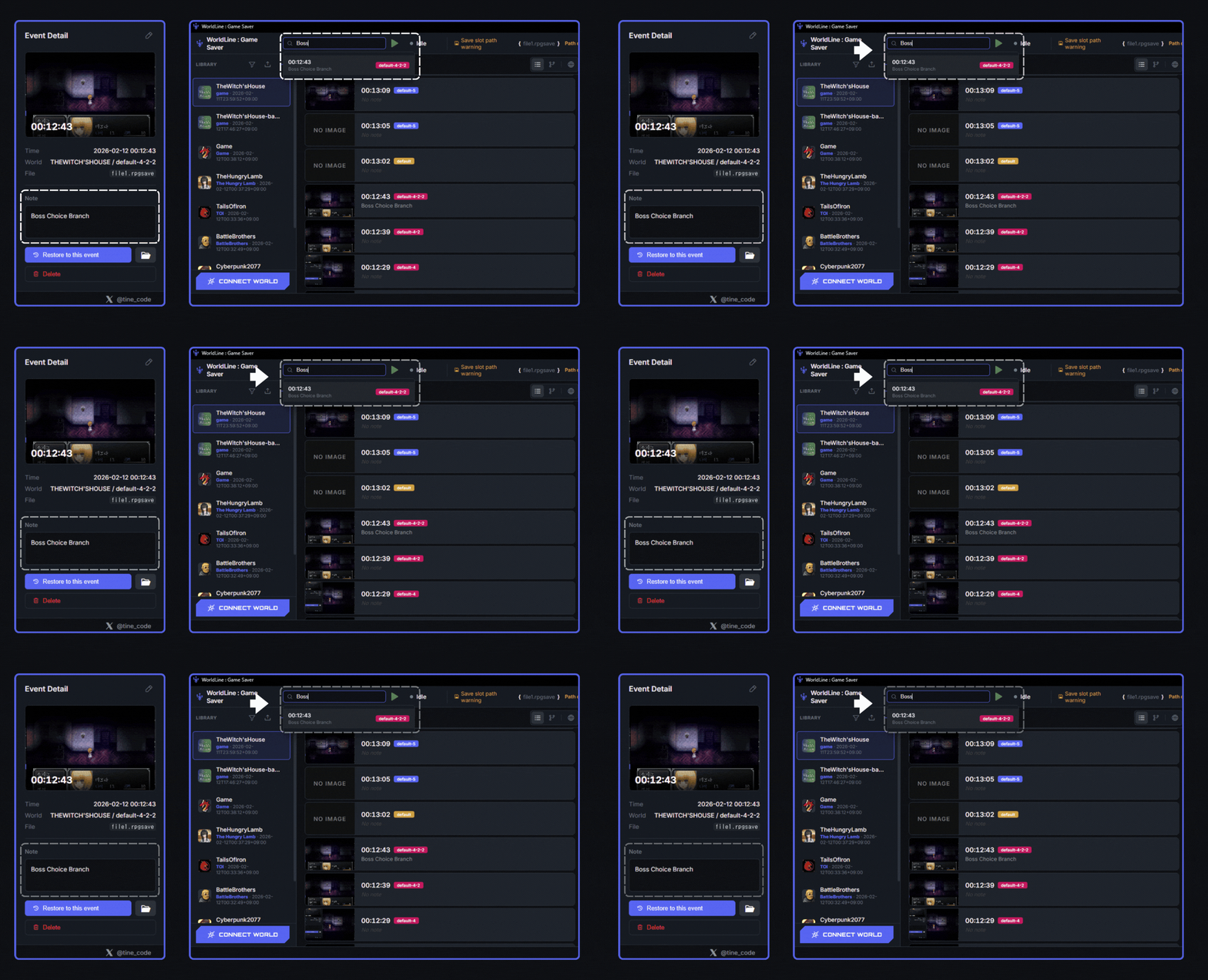
1. Select a Library and search the keyword entered in Note to quickly find events.
安装、应用指南、FAQ 和版本说明都可以在 WorldLine 专页中直接查看。